
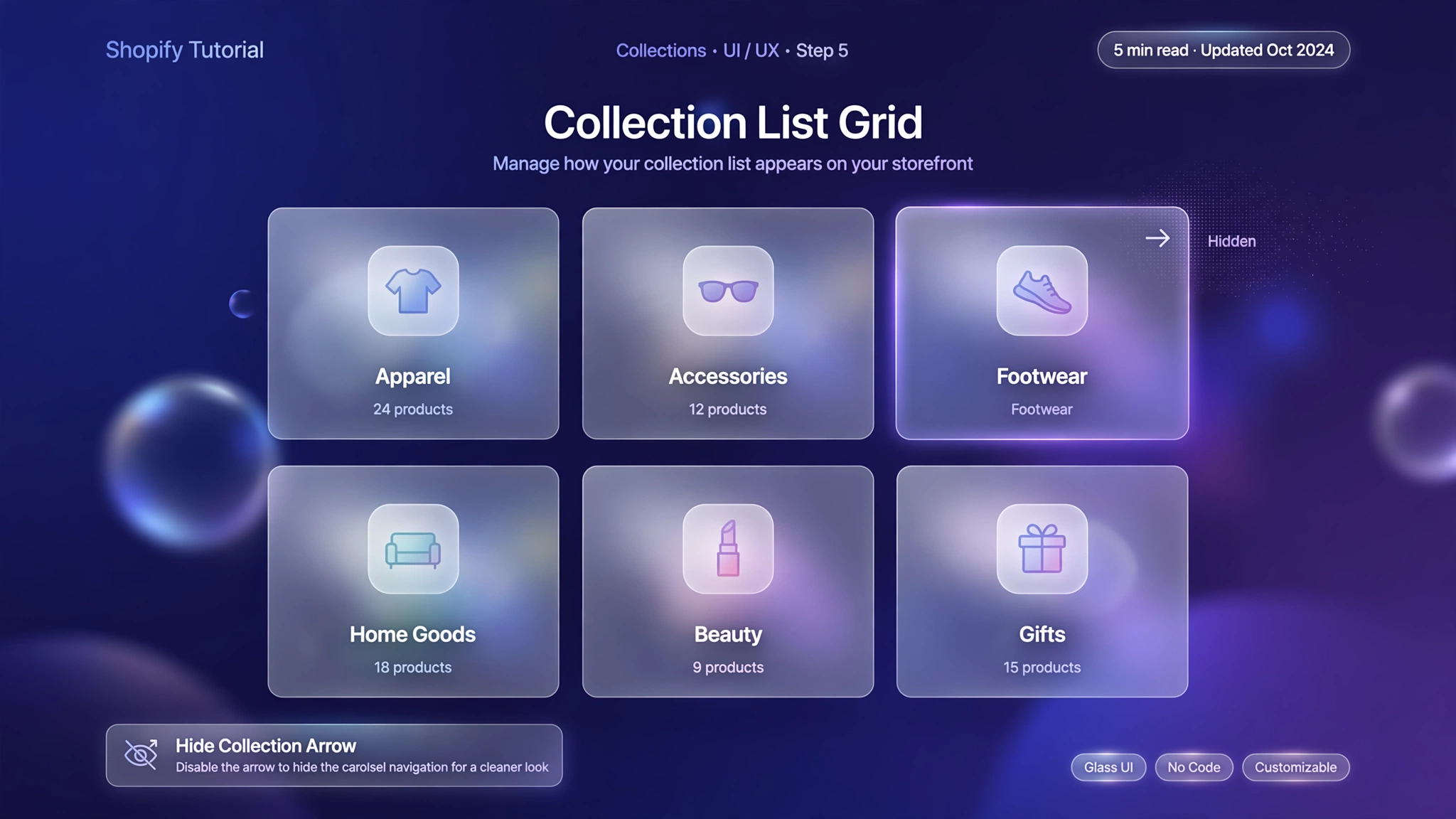
Those little prev/next arrows on your collection list might have made sense with three collections, but with ten or more they just add visual noise — especially on mobile where thumbs already swipe naturally. The good news: you can hide them with a few lines of CSS, without installing another app or touching theme files. Below are 5 ready-made variations, from a full minimal grid to mobile-only hiding. Pick the one that matches your store, paste it into a Custom Liquid section, and enjoy a cleaner collection page in under two minutes.
1. Fashion Store – Clean Minimal Grid
Made for clothing stores with big catalogs — removes every arrow and centers the heading for a calm, editorial grid that lets the collections speak.
Preview
Shop by Collection
Arrows hidden — minimal grid
Sample: Summer • Winter • Kids — no arrows, clean grid.
Liquid Code
{% comment %}
  LayoutKart snippet: Hide Collection List Arrow - Fashion Minimal
  Paste into a Custom Liquid section. No theme file edits needed.
{% endcomment %}
<style>
  /* 1. Hide the prev/next arrow buttons on collection lists */
  .collection-list .slider-buttons,
  .collection-list slider-component .slider-button {
    display: none !important;
  }
  /* 2. Center the heading now that controls are gone */
  .collection-list .title-wrapper-with-link {
    justify-content: center;
    text-align: center;
  }
  /* 3. Airy spacing between cards */
  .collection-list .grid { gap: 28px; }
  /* Keep swipe working on touch devices */
  .collection-list slider-component .slider {
    scroll-snap-type: x mandatory;
  }
</style>
2. Electronics – Hide on Desktop Only
Gadget shoppers on desktop get a tidy static grid, while mobile keeps swipe arrows for thumb navigation. Best of both worlds.
Preview
Shop by Collection
Hidden on desktop — visible on mobile
Sample: Summer • Winter • Kids — no arrows, clean grid.
Liquid Code
{% comment %}
  LayoutKart snippet: Hide Collection List Arrow - Electronics Desktop-Only
  Paste into a Custom Liquid section. No theme file edits needed.
{% endcomment %}
<style>
  /* 1. Hide the prev/next arrow buttons on collection lists */
  .collection-list .slider-buttons,
  .collection-list slider-component .slider-button {
    display: none !important;
  }
  @media screen and (min-width: 990px) {
    /* 2. Hide arrows on desktop only - mobile keeps them */
    .collection-list .slider-buttons {
      display: none !important;
    }
    /* 3. Show all collections in a grid on desktop */
    .collection-list slider-component .slider {
      display: grid;
      grid-template-columns: repeat(4, 1fr);
    }
  }
  /* Keep swipe working on touch devices */
  .collection-list slider-component .slider {
    scroll-snap-type: x mandatory;
  }
</style>
3. Beauty – Arrows Replaced by Dots
For cosmetics stores that want a softer touch — arrows disappear and are replaced by small elegant dots under the grid.
Preview
Shop by Collection
Arrows hidden — dots kept
Sample: Summer • Winter • Kids — no arrows, clean grid.
Liquid Code
{% comment %}
  LayoutKart snippet: Hide Collection List Arrow - Beauty Dots Instead
  Paste into a Custom Liquid section. No theme file edits needed.
{% endcomment %}
<style>
  /* 1. Hide the prev/next arrow buttons on collection lists */
  .collection-list .slider-buttons,
  .collection-list slider-component .slider-button {
    display: none !important;
  }
  /* 2. Keep the counter dots, drop the arrows */
  .collection-list .slider-button {
    display: none !important;
  }
  .collection-list .slider-counter {
    display: flex !important;
    justify-content: center;
    gap: 6px;
    margin-top: 12px;
  }
  .collection-list .slider-counter__link {
    width: 8px; height: 8px; border-radius: 50%;
    background: #f3c6d8;
  }
  .collection-list .slider-counter__link--active { background: #d6336c; }
  /* Keep swipe working on touch devices */
  .collection-list slider-component .slider {
    scroll-snap-type: x mandatory;
  }
</style>
4. Home Decor – Arrows on Hover Only
Furniture and decor stores get a gallery feel — arrows stay invisible until the visitor hovers the collection list, then fade in softly.
Preview
Shop by Collection
Arrows appear on hover
Sample: Summer • Winter • Kids — no arrows, clean grid.
Liquid Code
{% comment %}
  LayoutKart snippet: Hide Collection List Arrow - Home Decor Hover Reveal
  Paste into a Custom Liquid section. No theme file edits needed.
{% endcomment %}
<style>
  /* 1. Hide the prev/next arrow buttons on collection lists */
  .collection-list .slider-buttons,
  .collection-list slider-component .slider-button {
    display: none !important;
  }
  /* 2. Arrows transparent by default... */
  .collection-list .slider-button {
    opacity: 0;
    pointer-events: none;
    transition: opacity .35s ease;
  }
  /* 3. ...and fade in on hover */
  .collection-list slider-component:hover .slider-button {
    opacity: 1;
    pointer-events: auto;
  }
  /* Keep swipe working on touch devices */
  .collection-list slider-component .slider {
    scroll-snap-type: x mandatory;
  }
</style>
5. Jewelry – Luxury Full-Width Reveal
For fine jewelry — removes arrows, widens the grid to full width and adds generous letter-spacing for a high-end boutique feel.
Preview
Shop by Collection
Arrows hidden — luxury spacing
Sample: Summer • Winter • Kids — no arrows, clean grid.
Liquid Code
{% comment %}
  LayoutKart snippet: Hide Collection List Arrow - Jewelry Luxury
  Paste into a Custom Liquid section. No theme file edits needed.
{% endcomment %}
<style>
  /* 1. Hide the prev/next arrow buttons on collection lists */
  .collection-list .slider-buttons,
  .collection-list slider-component .slider-button {
    display: none !important;
  }
  /* 2. Full-width elegant grid */
  .collection-list .page-width { max-width: 1400px; }
  .collection-list .title {
    letter-spacing: .35em;
    text-transform: uppercase;
    font-size: 15px;
    text-align: center;
  }
  /* 3. Extra breathing room between pieces */
  .collection-list .grid { gap: 40px; }
  /* Keep swipe working on touch devices */
  .collection-list slider-component .slider {
    scroll-snap-type: x mandatory;
  }
</style>
How to Add Collection List Arrow Removal to Shopify
No app needed — this works with a free built-in Shopify feature called the Custom Liquid section. It takes about two minutes:
- From your Shopify admin, go to Online Store → Themes.
- Click Customize next to your live theme (works with Dawn and all Online Store 2.0 themes).
- In the theme editor, use the top dropdown to navigate to a collection page.
- In the left sidebar, click Add section → Custom liquid.
- Delete the placeholder code, paste the code from your chosen variation above, and click Save.
- Preview your store — the change is live instantly. Drag the section up or down to reposition it.
Tip: Always duplicate your theme first (Themes → … → Duplicate) so you have a backup before editing.
Customize the Collection List Arrow Removal
- Selectors: if your theme renames slider classes, right-click an arrow → Inspect, and swap the class names in the code.
- Scope: wrap the CSS in a page-specific class if you only want it on one template.
- Spacing: after hiding arrows, add margin or centering so the heading doesn’t look lopsided.
- Mobile check: always test on a real phone — swipe should still work after arrows are gone.
More Shopify Code Sections
Keep customizing your store with these copy-paste tutorials:
- Shopify Collection Product Grid Custom CSS
- Shopify Collection Page Custom Filter Design
- How to Hide Slider Navigation in Shopify
- How to Remove Shopify Slideshow Arrows and Dots
- How to Remove Arrow Icons from Shopify Theme
- How to Customize Shopify Header with Liquid
- Shopify Product Card Hover Effect (Liquid + CSS)
- Shopify Image Hover Zoom Effect
- Shopify Header Customization: Complete Code Guide
Conclusion
Hiding collection list arrows is one of those tiny cleanups that makes a store feel instantly more premium. Shoppers on mobile swipe anyway, and desktop visitors get a calmer, more confident grid. Pick the variation that fits your catalog size, paste it in, and cross one more ‘almost perfect’ detail off your list.
Want a store that already has all of this built in? Check out LayoutKart’s readymade Shopify sections and templates — premium designs, clean Liquid code, ready to install.
