
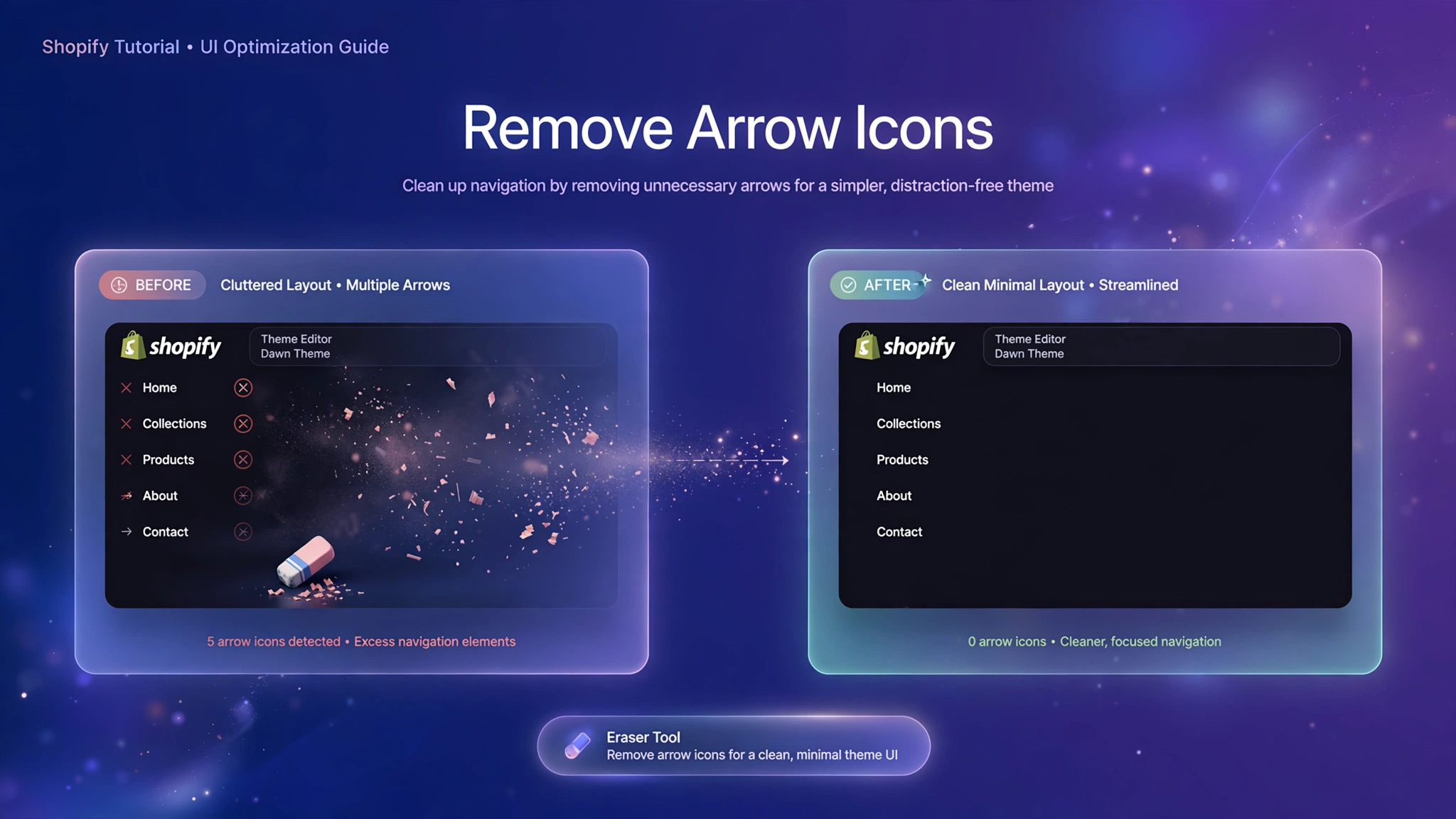
Arrows everywhere — on the slideshow, the product media gallery, collection sliders, testimonial carousels. Each one is visual noise competing with your products. A truly minimal theme lets imagery breathe and guides the eye to the Add to Cart button, not to navigation chrome. Removing arrow icons takes seconds with the right CSS selectors — no app, no theme file edits. Below are 5 variations covering every arrow in a typical Dawn-based store. Pick the ones you need, paste them into a Custom Liquid section, and enjoy the calm.
1. Fashion Store – Slideshow Arrows Gone
The hero slideshow is the first thing visitors see — removing its arrows and centering the dots gives fashion stores an instant editorial upgrade.
Preview
Featured Collection
Arrows removed — dots centered
Sample: Slideshow controls — arrows handled per the variation style.
Liquid Code
{% comment %}
  LayoutKart snippet: Remove Arrow Icons - Fashion Store Slideshow Arrows Gone
  Paste into a Custom Liquid section. No theme file edits needed.
{% endcomment %}
<style>
  /* Fashion: remove slideshow arrows, keep dots */
  .slideshow__controls .slider-button--prev,
  .slideshow__controls .slider-button--next {
    display: none !important;
  }
  /* Center the remaining dots */
  .slideshow__controls {
    justify-content: center;
  }
  .slideshow__controls .slider-counter {
    margin: 0 auto;
  }
</style>
2. Electronics – Every Slider Cleaned
One snippet that wipes arrows from every slider in the theme. Gadget stores with lots of carousels get a uniformly minimal look.
Preview
Featured Collection
All arrows removed theme-wide
Sample: Slideshow controls — arrows handled per the variation style.
Liquid Code
{% comment %}
  LayoutKart snippet: Remove Arrow Icons - Electronics Every Slider Cleaned
  Paste into a Custom Liquid section. No theme file edits needed.
{% endcomment %}
<style>
  /* Electronics: remove ALL slider buttons theme-wide */
  .slider-button,
  slider-component .slider-button,
  .slideshow__controls .slider-button {
    display: none !important;
  }
  /* Prevent empty gaps where buttons were */
  .slider-buttons { justify-content: center; gap: 0; }
  /* Autoplay keeps moving so nothing feels stuck */
  slideshow-component { --autoplay-speed: 6s; }
</style>
3. Beauty – Mobile-Only Removal
Desktop keeps its elegant arrows; mobile drops them for thumb-friendly dots. The responsive compromise beauty brands need.
Preview
Featured Collection
Hidden on mobile — kept on desktop
Sample: Slideshow controls — arrows handled per the variation style.
Liquid Code
{% comment %}
  LayoutKart snippet: Remove Arrow Icons - Beauty Mobile-Only Removal
  Paste into a Custom Liquid section. No theme file edits needed.
{% endcomment %}
<style>
  /* Beauty: hide arrows on mobile only */
  @media screen and (max-width: 749px) {
    .slider-button,
    .slideshow__controls .slider-button {
      display: none !important;
    }
    /* Dots get a little bigger for thumbs */
    .slider-counter__link {
      width: 10px; height: 10px;
    }
  }
</style>
4. Home Decor – Minimal Line Arrows
Instead of removing, replace Dawn’s chunky circled arrows with whisper-thin line icons. Warm minimalism for furniture stores.
Preview
Featured Collection
Chunky arrows → thin lines
Sample: Slideshow controls — arrows handled per the variation style.
Liquid Code
{% comment %}
  LayoutKart snippet: Remove Arrow Icons - Home Decor Minimal Line Arrows
  Paste into a Custom Liquid section. No theme file edits needed.
{% endcomment %}
<style>
  /* Home Decor: swap chunky arrows for minimal lines */
  .slider-button {
    background: transparent !important;
    border: none !important;
    box-shadow: none !important;
  }
  .slider-button .icon {
    width: 18px; height: 18px;
    stroke: #b07d4f; stroke-width: 1.5;
  }
  .slider-button:hover { background: rgba(176,125,79,.08) !important; }
  /* Hide the circle background Dawn adds */
  .slider-button::before { display: none; }
</style>
5. Jewelry – Invisible Until Hover
Arrows fade to invisible but the layout never shifts — hovering reveals them softly. The most luxurious option: nothing to see until you look.
Preview
Featured Collection
Invisible — appear on hover
Sample: Slideshow controls — arrows handled per the variation style.
Liquid Code
{% comment %}
  LayoutKart snippet: Remove Arrow Icons - Jewelry Invisible Until Hover
  Paste into a Custom Liquid section. No theme file edits needed.
{% endcomment %}
<style>
  /* Jewelry: invisible arrows - layout preserved */
  .slider-button {
    opacity: 0;
    pointer-events: none;
    transition: opacity .4s ease;
  }
  /* Reveal softly on hover for discoverability */
  slider-component:hover .slider-button,
  .slideshow__controls:hover .slider-button {
    opacity: .55;
    pointer-events: auto;
  }
  slider-component:hover .slider-button:hover { opacity: 1; }
</style>
How to Add Arrow Icon Removal to Shopify
No app needed — this works with a free built-in Shopify feature called the Custom Liquid section. It takes about two minutes:
- From your Shopify admin, go to Online Store → Themes.
- Click Customize next to your live theme (works with Dawn and all Online Store 2.0 themes).
- In the theme editor, use the top dropdown to navigate to your homepage.
- In the left sidebar, click Add section → Custom liquid.
- Delete the placeholder code, paste the code from your chosen variation above, and click Save.
- Preview your store — the change is live instantly. Drag the section up or down to reposition it.
Tip: Always duplicate your theme first (Themes → … → Duplicate) so you have a backup before editing.
Customize the Arrow Icon Removal
- Find selectors: right-click any arrow → Inspect, and copy its exact class if your theme differs.
- Combine: paste multiple variations’ CSS into one Custom Liquid section to clean the whole theme at once.
- Keep dots: if you remove arrows, consider keeping pagination dots so visitors know there’s more.
- Test swipe: on mobile, confirm touch-swipe still works after arrows disappear.
More Shopify Code Sections
Keep customizing your store with these copy-paste tutorials:
- How to Remove Shopify Slideshow Arrows and Dots
- How to Hide Slider Navigation in Shopify
- How to Hide Collection List Arrow in Shopify
- How to Customize Shopify Header with Liquid
- Shopify Header Customization: Complete Code Guide
- How to Customize Shopify Footer Using Liquid
- Shopify Image Hover Zoom Effect
- Shopify Hero Banner Text Animation (Liquid + CSS)
- Shopify Video Background Hero Section
Conclusion
Arrow icons are like scaffolding — useful during construction, ugly when left up. A few lines of CSS strip them away and leave a cleaner, more confident storefront. Start with the slideshow (biggest visual win), then work through sliders and carousels. Your products deserve the spotlight, not the navigation.
Want a store that already has all of this built in? Check out LayoutKart’s readymade Shopify sections and templates — premium designs, clean Liquid code, ready to install.
