
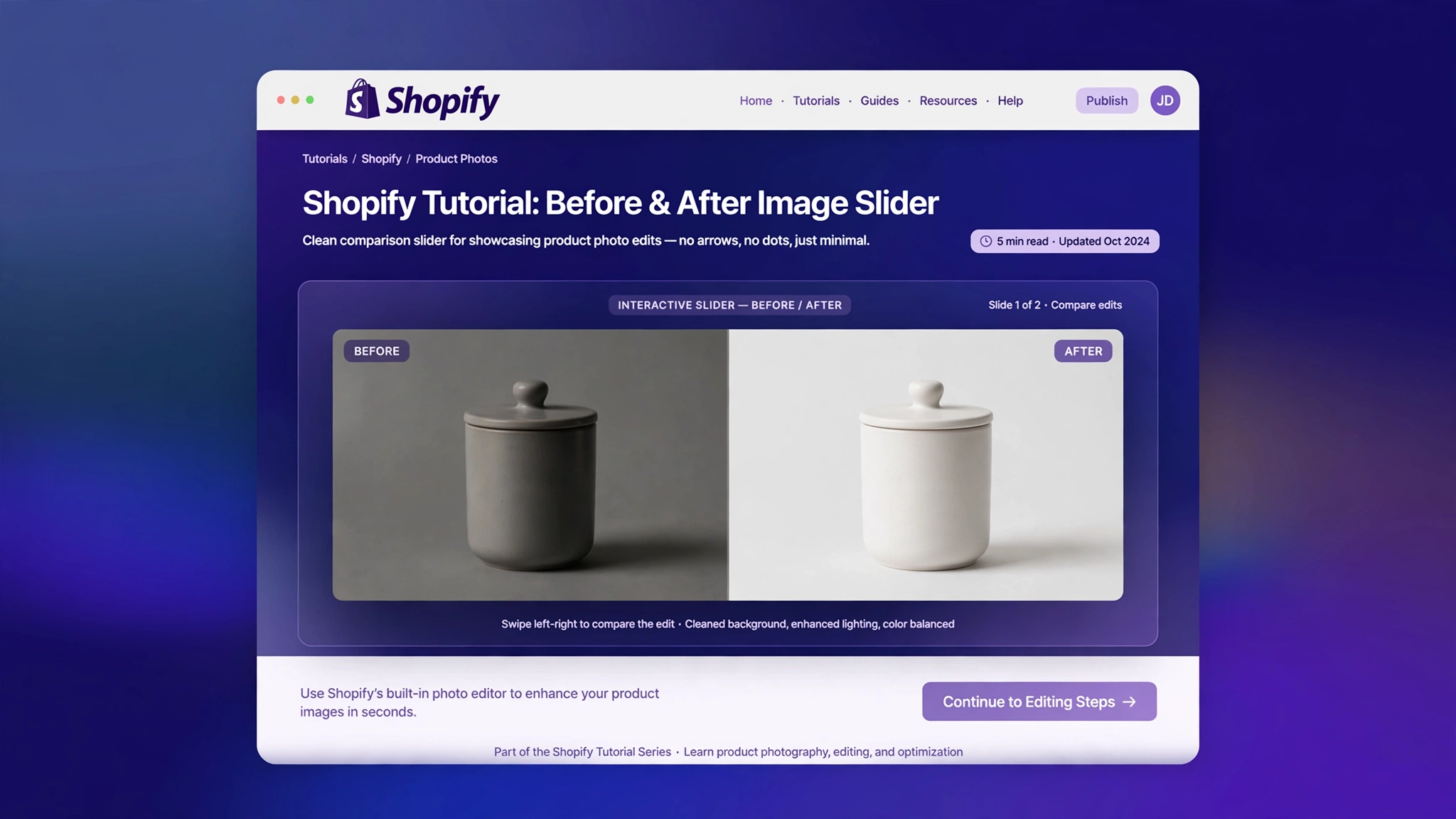
Slider arrows and dots are useful — until they are not. Maybe they clash with your hero design, overlap your headline text, or you simply want a cleaner autoplay look. Hiding them should not require an app or theme surgery.
A few CSS lines in a Custom Liquid section can hide any slider navigation cleanly — arrows only, dots only, everything, or just on one device. Below are 5 techniques with live previews showing the clean end result. Copy the one you need and declutter in minutes.
1. Fashion Store – Hide Arrows, Keep Dots
Arrows gone, dots stay — the arrow buttons remain in the markup but are invisible, so swipe and dots keep working.
Preview
Arrows hidden — dots stay visible
Liquid Code
{% comment %} LayoutKart snippet: shopify-hide-slider-navigation v1 - paste into a Custom Liquid section {% endcomment %}
<style>
/* Tip: replace .f7v1-arrow with your theme's arrow class, e.g. .slider-button */
.f7v1-slider{max-width:440px;margin:0 auto;position:relative;background:#111;color:#fff;font-family:Arial,Helvetica,sans-serif;overflow:hidden;border-radius:8px}
.f7v1-slide{padding:58px 20px;text-align:center;font-size:22px;letter-spacing:3px}
.f7v1-arrow{position:absolute;top:50%;transform:translateY(-50%);background:rgba(255,255,255,.2);border:none;color:#fff;font-size:20px;width:40px;height:40px;border-radius:50%;cursor:pointer;display:none}
.f7v1-prev{left:12px}
.f7v1-next{right:12px}
.f7v1-dots{text-align:center;padding:12px}
.f7v1-dots span{display:inline-block;width:9px;height:9px;border-radius:50%;background:#555;margin:0 4px}
.f7v1-dots .on{background:#fff}
</style>
<div class="f7v1-slider"><button class="f7v1-arrow f7v1-prev" aria-label="Previous">‹</button><div class="f7v1-slide">NEW SEASON</div><button class="f7v1-arrow f7v1-next" aria-label="Next">›</button><div class="f7v1-dots"><span class="on"></span><span></span><span></span></div></div>
2. Beauty Store – Hide Dots, Keep Arrows
Dots gone, arrows stay — for when you want manual control without the dot clutter under the slide.
Preview
Dots hidden — arrows stay visible
Liquid Code
{% comment %} LayoutKart snippet: shopify-hide-slider-navigation v2 - paste into a Custom Liquid section {% endcomment %}
<style>
/* Tip: replace .f7v2-dots with your theme's dots class, e.g. .slider-counter */
.f7v2-slider{max-width:440px;margin:0 auto;position:relative;background:#fdf2f5;font-family:Georgia,serif;overflow:hidden;border-radius:12px}
.f7v2-slide{padding:58px 20px;text-align:center;font-size:22px;font-style:italic;color:#a1234f}
.f7v2-arrow{position:absolute;top:50%;transform:translateY(-50%);background:#fff;border:1px solid #f3c6d3;color:#d6336c;font-size:18px;width:38px;height:38px;border-radius:50%;cursor:pointer}
.f7v2-prev{left:12px}
.f7v2-next{right:12px}
.f7v2-dots{display:none}
</style>
<div class="f7v2-slider"><button class="f7v2-arrow f7v2-prev" aria-label="Previous">‹</button><div class="f7v2-slide">Spring Glow Edit</div><button class="f7v2-arrow f7v2-next" aria-label="Next">›</button><div class="f7v2-dots"><span></span><span></span></div></div>
3. Electronics Store – Hide Everything
Total minimalism — every control hidden for a pure cinematic autoplay hero with zero chrome.
Preview
All navigation hidden — pure autoplay look
Liquid Code
{% comment %} LayoutKart snippet: shopify-hide-slider-navigation v3 - paste into a Custom Liquid section {% endcomment %}
<style>
.f7v3-slider{max-width:440px;margin:0 auto;position:relative;background:#071c33;color:#37e0ff;font-family:'Trebuchet MS',Verdana,sans-serif;overflow:hidden;border-radius:8px}
.f7v3-slide{padding:60px 20px;text-align:center;font-size:22px;letter-spacing:4px}
.f7v3-arrow,.f7v3-dots{display:none}
.f7v3-note{text-align:center;font-size:11px;letter-spacing:2px;color:#5b7ba6;padding:10px}
</style>
<div class="f7v3-slider"><button class="f7v3-arrow" aria-label="Previous">‹</button><div class="f7v3-slide">NOVA X5 LAUNCH</div><button class="f7v3-arrow" aria-label="Next">›</button><div class="f7v3-dots"><span></span><span></span></div><div class="f7v3-note">AUTOPLAY — NO CONTROLS</div></div>
4. Jewelry Store – Desktop-Only Hiding
Responsive hiding — controls vanish on desktop but stay for mobile swipers, with a single media query.
Preview
Hidden on desktop — visible on mobile
Liquid Code
{% comment %} LayoutKart snippet: shopify-hide-slider-navigation v4 - paste into a Custom Liquid section {% endcomment %}
<style>
.f7v4-slider{max-width:440px;margin:0 auto;position:relative;background:#0c0c14;font-family:Georgia,serif;overflow:hidden;border:1px solid #e9c767}
.f7v4-slide{padding:58px 20px;text-align:center;font-size:20px;letter-spacing:4px;color:#e9c767}
.f7v4-arrow{position:absolute;top:50%;transform:translateY(-50%);background:transparent;border:1px solid #e9c767;color:#e9c767;font-size:18px;width:38px;height:38px;border-radius:50%;cursor:pointer}
.f7v4-prev{left:12px}
.f7v4-next{right:12px}
.f7v4-dots{text-align:center;padding:12px}
.f7v4-dots span{display:inline-block;width:8px;height:8px;border-radius:50%;border:1px solid #e9c767;margin:0 4px}
@media (min-width:750px){.f7v4-arrow,.f7v4-dots{display:none}}
</style>
<div class="f7v4-slider"><button class="f7v4-arrow f7v4-prev" aria-label="Previous">‹</button><div class="f7v4-slide">HAUTE JOAILLERIE</div><button class="f7v4-arrow f7v4-next" aria-label="Next">›</button><div class="f7v4-dots"><span></span><span></span><span></span></div></div>
5. Grocery Store – Hide Thumbnail Strip
Thumbs away — hide the thumbnail navigation strip for a cleaner, calmer product gallery.
Preview
Thumbnail strip hidden via CSS
Thumbnail strip hidden
Liquid Code
{% comment %} LayoutKart snippet: shopify-hide-slider-navigation v5 - paste into a Custom Liquid section {% endcomment %}
<style>
.f7v5-gal{max-width:440px;margin:0 auto;font-family:Verdana,Geneva,sans-serif}
.f7v5-main{background:#f2faf4;border:1px solid #cfe8d4;border-radius:12px;padding:56px 20px;text-align:center;font-size:20px;color:#257a36}
.f7v5-thumbs{display:none}
.f7v5-note{text-align:center;font-size:12px;color:#777;margin-top:8px}
</style>
<div class="f7v5-gal"><div class="f7v5-main">🍎 Fresh Apples</div><div class="f7v5-thumbs"><span>thumb1</span><span>thumb2</span><span>thumb3</span></div><p class="f7v5-note">Thumbnail strip hidden via CSS</p></div>
How to Add Hidden Slider Navigation to Shopify
Every snippet above is built for Shopify’s Custom Liquid section, so you don’t need to touch a single theme file. Here’s the 2-minute setup:
- From your Shopify admin, go to Online Store → Themes.
- Click Customize next to your live theme (works with Dawn and all OS 2.0 themes).
- Open the template where you want the feature, then click Add section.
- Choose Custom Liquid from the section list.
- Copy the Liquid code from your favourite variation above and paste it into the Custom Liquid box.
- Click Save — it’s live on your storefront instantly. No app, no coding, no risk.
Customize the Slider Navigation Hiding
Make it yours:
display:nonevsvisibility:hidden— none removes the space; hidden keeps the layout intact.- Scope it — prefix selectors with your section ID to hide navigation on one slider only.
- Breakpoints — use
min-width/max-widthmedia queries for device-specific hiding. - Keep it usable — hidden controls can’t be tabbed; make sure swipe or autoplay still works.
- Adapt the classes — swap the demo classes for your theme’s real ones (see the comments in the code).
More Shopify Code Sections
Keep upgrading your store with these free Liquid tutorials:
- How to Remove Shopify Slideshow Arrows and Dots
- How to Hide Collection List Arrow in Shopify
- Shopify Product Image Changes on Hover (Second Image)
- Shopify Image Hover Zoom Effect
- Shopify Before & After Image Slider
- Shopify Testimonial Auto Slider
- Shopify Infinite Logo Carousel (No App)
- How to Remove Arrow Icons from Shopify Theme
Conclusion
Hiding slider navigation is a 30-second CSS job once you know the right selectors — and now you have five recipes for every situation. Whether it is arrows-only, dots-only, everything, or just on mobile, paste the snippet into a Custom Liquid section and enjoy the cleaner look. Less chrome, more focus on what you sell.
Want more copy-paste Shopify sections? LayoutKart publishes free Liquid tutorials every week — no apps, no monthly fees, just clean code. Bookmark this page and check back for new effects!
