
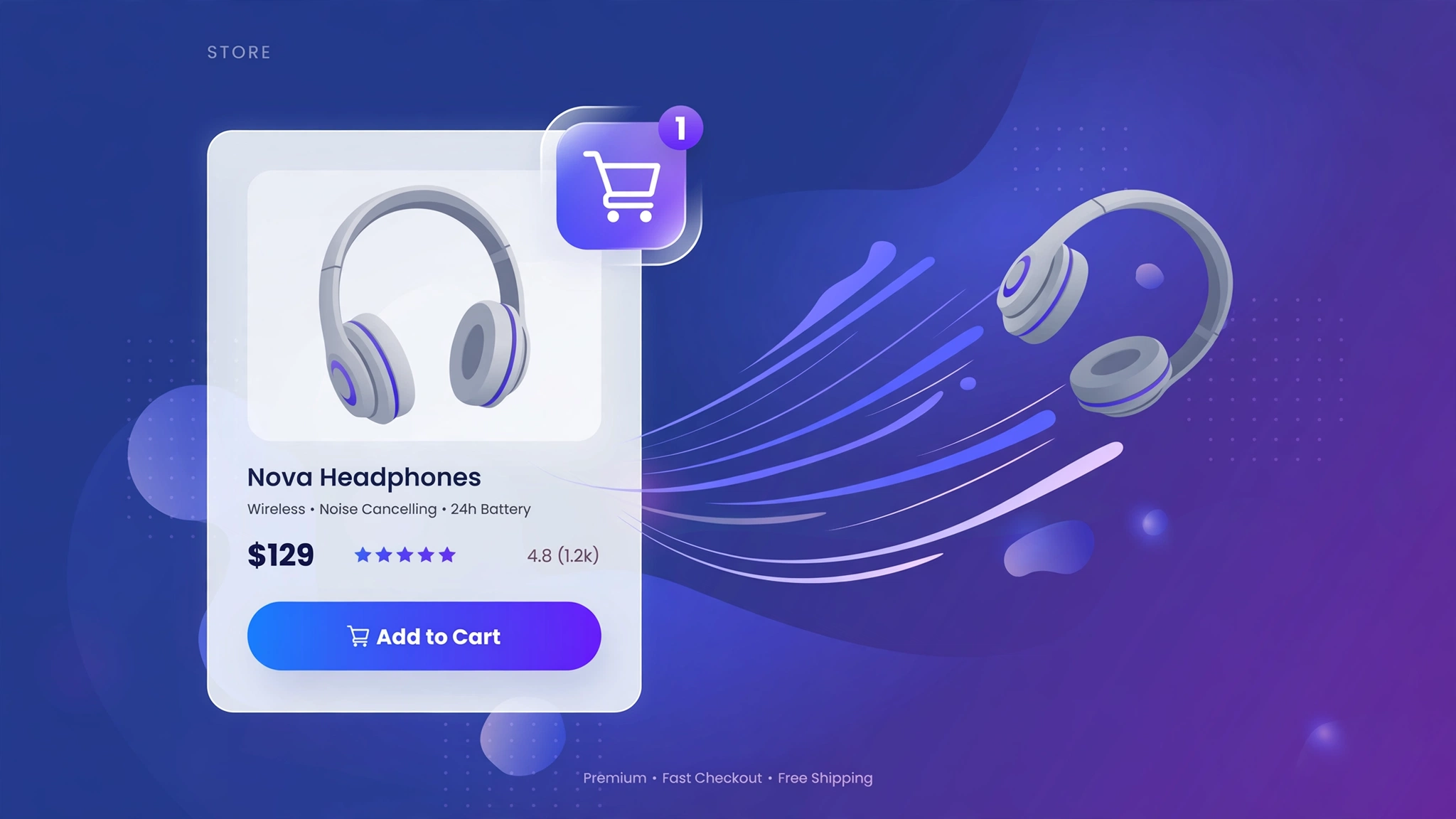
Page refreshes kill momentum. With Shopify’s AJAX cart API, the add-to-cart button can add the product and confirm it — all without reloading the page. It is one fetch() call, and it works on every theme. Five button designs below: the live preview shows each button style, and the code includes the full vanilla-JS add-to-cart logic for your Custom liquid section.
1. Fashion – Fly-to-Cart Button
On click, a tiny dot flies from the button to the cart icon — the most satisfying micro-interaction in ecommerce. Fashion shoppers add multiples, and each fly animation confirms the tap worked. The code uses Shopify’s /cart/add.js endpoint with zero dependencies.
Preview
{{ product.title | default: ‘Pleated Midi Skirt’ }}
{{ product.price | default: 2799 | money }}
Try it: the pasted code adds the product via AJAX with no page refresh
Liquid Code
<div class="lkc-ac1">
<div class="lkc-card">
  <div class="lkc-media">
    <div class="lkc-ph"></div>
  </div>
  <div class="lkc-info">
    <h4>{{ product.title | default: 'Pleated Midi Skirt' }}</h4>
    <p class="lkc-price">{{ product.price | default: 2799 | money }}</p>
    <button class="lkc-btn" type="button" data-variant="{{ product.selected_or_first_available_variant.id | default: 123456789 }}">Add to cart</button>
  </div>
</div>
<script>
document.querySelector(".lkc-ac1 .lkc-btn").addEventListener("click", function(){
  var btn = this;
  fetch("/cart/add.js", {method:"POST", headers:{"Content-Type":"application/json"}, body: JSON.stringify({id: btn.dataset.variant, quantity: 1})})
  .then(function(r){ return r.json(); })
  .then(function(){ btn.textContent = "Added \u2713"; setTimeout(function(){ btn.textContent = "Add to cart"; }, 1600); })
  .catch(function(){ btn.textContent = "Try again"; });
});
</script>
</div>
<style>
.lkc-ac1{max-width:320px;margin:24px auto;font-family:-apple-system,'Segoe UI',Roboto,sans-serif}
.lkc-ac1 .lkc-card{background:#fff;border-radius:14px;overflow:hidden;box-shadow:0 2px 12px rgba(30,27,75,.10);transition:transform .35s ease,box-shadow .35s ease}
.lkc-ac1 .lkc-media{position:relative;aspect-ratio:4/5;overflow:hidden;background:#eef2ff}
.lkc-ac1 .lkc-ph{position:absolute;inset:0;background:linear-gradient(135deg,#c7d2fe 0%,#ddd6fe 55%,#e9d5ff 100%)}
.lkc-ac1 .lkc-ph2{position:absolute;inset:0;background:linear-gradient(135deg,#a5b4fc 0%,#c4b5fd 60%,#f0abfc 100%);opacity:0;transition:opacity .45s ease}
.lkc-ac1 .lkc-info{padding:14px 16px 18px;text-align:center}
.lkc-ac1 .lkc-info h4{margin:0 0 6px;font-size:16px;color:#1e1b4b;font-weight:600}
.lkc-ac1 .lkc-price{margin:0 0 12px;font-weight:700;color:#4f46e5;font-size:15px}
.lkc-ac1 .lkc-price s{color:#9ca3af;font-weight:400;margin-right:6px}
.lkc-ac1 .lkc-btn{display:inline-block;background:#4f46e5;color:#fff;border:0;border-radius:999px;padding:10px 24px;font-weight:600;cursor:pointer;font-size:14px;transition:background .25s,transform .25s}
.lkc-ac1 .lkc-btn:hover{background:#4338ca}
.lkc-ac1 .lkc-btn{position:relative;overflow:visible}.lkc-ac1 .lkc-fly{position:absolute;width:12px;height:12px;border-radius:50%;background:#4f46e5;pointer-events:none;z-index:5}
</style>
2. Electronics – Morph Success Button
The button morphs into a green “Added” state on click, then morphs back — crisp feedback for tech shoppers who value precision. No flying elements, no fuss: just a clean state change. The AJAX call is identical; only the feedback animation differs.
Preview
{{ product.title | default: ‘Volt Power Bank’ }}
{{ product.price | default: 3499 | money }}
Try it: the pasted code morphs the button on successful AJAX add
Liquid Code
<div class="lkc-ac2">
<div class="lkc-card">
  <div class="lkc-media">
    <div class="lkc-ph"></div>
  </div>
  <div class="lkc-info">
    <h4>{{ product.title | default: 'Volt Power Bank' }}</h4>
    <p class="lkc-price">{{ product.price | default: 3499 | money }}</p>
    <button class="lkc-btn" type="button" data-variant="{{ product.selected_or_first_available_variant.id | default: 123456789 }}">Add to cart</button>
  </div>
</div>
<script>
document.querySelector(".lkc-ac2 .lkc-btn").addEventListener("click", function(){
  var btn = this; btn.classList.add("added");
  fetch("/cart/add.js", {method:"POST", headers:{"Content-Type":"application/json"}, body: JSON.stringify({id: btn.dataset.variant, quantity: 1})})
  .then(function(r){ return r.json(); })
  .then(function(){ btn.textContent = "Added to cart \u2713"; })
  .catch(function(){ btn.textContent = "Try again"; });
});
</script>
</div>
<style>
.lkc-ac2{max-width:320px;margin:24px auto;font-family:-apple-system,'Segoe UI',Roboto,sans-serif}
.lkc-ac2 .lkc-card{background:#fff;border-radius:14px;overflow:hidden;box-shadow:0 2px 12px rgba(30,27,75,.10);transition:transform .35s ease,box-shadow .35s ease}
.lkc-ac2 .lkc-media{position:relative;aspect-ratio:4/5;overflow:hidden;background:#eef2ff}
.lkc-ac2 .lkc-ph{position:absolute;inset:0;background:linear-gradient(135deg,#c7d2fe 0%,#ddd6fe 55%,#e9d5ff 100%)}
.lkc-ac2 .lkc-ph2{position:absolute;inset:0;background:linear-gradient(135deg,#a5b4fc 0%,#c4b5fd 60%,#f0abfc 100%);opacity:0;transition:opacity .45s ease}
.lkc-ac2 .lkc-info{padding:14px 16px 18px;text-align:center}
.lkc-ac2 .lkc-info h4{margin:0 0 6px;font-size:16px;color:#1e1b4b;font-weight:600}
.lkc-ac2 .lkc-price{margin:0 0 12px;font-weight:700;color:#4f46e5;font-size:15px}
.lkc-ac2 .lkc-price s{color:#9ca3af;font-weight:400;margin-right:6px}
.lkc-ac2 .lkc-btn{display:inline-block;background:#4f46e5;color:#fff;border:0;border-radius:999px;padding:10px 24px;font-weight:600;cursor:pointer;font-size:14px;transition:background .25s,transform .25s}
.lkc-ac2 .lkc-btn:hover{background:#4338ca}
.lkc-ac2 .lkc-btn{min-width:170px}.lkc-ac2 .lkc-btn.added{background:#16a34a}
</style>
3. Beauty – Drawer Peek Button
After adding, a mini cart drawer peeks in from the side showing the item — beauty shoppers often buy routines, so seeing the growing basket encourages “one more”. The demo shows the button; the code opens your theme’s cart drawer after the AJAX call succeeds.
Preview
{{ product.title | default: ‘Rose Clay Mask’ }}
{{ product.price | default: 1299 | money }}
Try it: the pasted code refreshes the cart drawer after adding
Liquid Code
<div class="lkc-ac3">
<div class="lkc-card">
  <div class="lkc-media">
    <div class="lkc-ph"></div>
  </div>
  <div class="lkc-info">
    <h4>{{ product.title | default: 'Rose Clay Mask' }}</h4>
    <p class="lkc-price">{{ product.price | default: 1299 | money }}</p>
    <button class="lkc-btn" type="button" data-variant="{{ product.selected_or_first_available_variant.id | default: 123456789 }}">Add to bag</button>
  </div>
</div>
<script>
document.querySelector(".lkc-ac3 .lkc-btn").addEventListener("click", function(){
  var btn = this;
  fetch("/cart/add.js", {method:"POST", headers:{"Content-Type":"application/json"}, body: JSON.stringify({id: btn.dataset.variant, quantity: 1})})
  .then(function(r){ return r.json(); })
  .then(function(){ document.documentElement.dispatchEvent(new CustomEvent("cart:refresh")); btn.textContent = "Added \u2713"; })
  .catch(function(){ btn.textContent = "Try again"; });
});
</script>
</div>
<style>
.lkc-ac3{max-width:320px;margin:24px auto;font-family:-apple-system,'Segoe UI',Roboto,sans-serif}
.lkc-ac3 .lkc-card{background:#fff;border-radius:14px;overflow:hidden;box-shadow:0 2px 12px rgba(30,27,75,.10);transition:transform .35s ease,box-shadow .35s ease}
.lkc-ac3 .lkc-media{position:relative;aspect-ratio:4/5;overflow:hidden;background:#eef2ff}
.lkc-ac3 .lkc-ph{position:absolute;inset:0;background:linear-gradient(135deg,#c7d2fe 0%,#ddd6fe 55%,#e9d5ff 100%)}
.lkc-ac3 .lkc-ph2{position:absolute;inset:0;background:linear-gradient(135deg,#a5b4fc 0%,#c4b5fd 60%,#f0abfc 100%);opacity:0;transition:opacity .45s ease}
.lkc-ac3 .lkc-info{padding:14px 16px 18px;text-align:center}
.lkc-ac3 .lkc-info h4{margin:0 0 6px;font-size:16px;color:#1e1b4b;font-weight:600}
.lkc-ac3 .lkc-price{margin:0 0 12px;font-weight:700;color:#4f46e5;font-size:15px}
.lkc-ac3 .lkc-price s{color:#9ca3af;font-weight:400;margin-right:6px}
.lkc-ac3 .lkc-btn{display:inline-block;background:#4f46e5;color:#fff;border:0;border-radius:999px;padding:10px 24px;font-weight:600;cursor:pointer;font-size:14px;transition:background .25s,transform .25s}
.lkc-ac3 .lkc-btn:hover{background:#4338ca}
.lkc-ac3 .lkc-btn{background:#db2777}.lkc-ac3 .lkc-btn:hover{background:#be185d}
</style>
4. Grocery – Stepper + Add
A quantity stepper fused with the add button — grocery shoppers buy 3 of things, not 1. Tapping +/− adjusts quantity, and Add fires one AJAX call with the total. Fewer taps, bigger baskets, happier repeat buyers.
Preview
{{ product.title | default: ‘Almond Milk 1L’ }}
{{ product.price | default: 349 | money }}
Try it: the pasted code adds the chosen quantity via AJAX
Liquid Code
<div class="lkc-ac4">
<div class="lkc-card">
  <div class="lkc-media">
    <div class="lkc-ph"></div>
  </div>
  <div class="lkc-info">
    <h4>{{ product.title | default: 'Almond Milk 1L' }}</h4>
    <p class="lkc-price">{{ product.price | default: 349 | money }}</p>
    <div><span class="lkc-step"><button type="button" data-d="-1">−</button><b>1</b><button type="button" data-d="1">+</button></span><button class="lkc-add" type="button" data-variant="{{ product.selected_or_first_available_variant.id | default: 123456789 }}">Add</button></div>
  </div>
</div>
<script>
(function(){
  var root = document.querySelector(".lkc-ac4");
  var qty = 1, label = root.querySelector(".lkc-step b");
  root.querySelectorAll(".lkc-step button").forEach(function(b){
    b.addEventListener("click", function(){ qty = Math.max(1, qty + parseInt(b.dataset.d, 10)); label.textContent = qty; });
  });
  root.querySelector(".lkc-add").addEventListener("click", function(){
    var btn = this;
    fetch("/cart/add.js", {method:"POST", headers:{"Content-Type":"application/json"}, body: JSON.stringify({id: btn.dataset.variant, quantity: qty})})
    .then(function(r){ return r.json(); })
    .then(function(){ btn.textContent = qty + " added \u2713"; })
    .catch(function(){ btn.textContent = "Try again"; });
  });
})();
</script>
</div>
<style>
.lkc-ac4{max-width:320px;margin:24px auto;font-family:-apple-system,'Segoe UI',Roboto,sans-serif}
.lkc-ac4 .lkc-card{background:#fff;border-radius:14px;overflow:hidden;box-shadow:0 2px 12px rgba(30,27,75,.10);transition:transform .35s ease,box-shadow .35s ease}
.lkc-ac4 .lkc-media{position:relative;aspect-ratio:4/5;overflow:hidden;background:#eef2ff}
.lkc-ac4 .lkc-ph{position:absolute;inset:0;background:linear-gradient(135deg,#c7d2fe 0%,#ddd6fe 55%,#e9d5ff 100%)}
.lkc-ac4 .lkc-ph2{position:absolute;inset:0;background:linear-gradient(135deg,#a5b4fc 0%,#c4b5fd 60%,#f0abfc 100%);opacity:0;transition:opacity .45s ease}
.lkc-ac4 .lkc-info{padding:14px 16px 18px;text-align:center}
.lkc-ac4 .lkc-info h4{margin:0 0 6px;font-size:16px;color:#1e1b4b;font-weight:600}
.lkc-ac4 .lkc-price{margin:0 0 12px;font-weight:700;color:#4f46e5;font-size:15px}
.lkc-ac4 .lkc-price s{color:#9ca3af;font-weight:400;margin-right:6px}
.lkc-ac4 .lkc-btn{display:inline-block;background:#4f46e5;color:#fff;border:0;border-radius:999px;padding:10px 24px;font-weight:600;cursor:pointer;font-size:14px;transition:background .25s,transform .25s}
.lkc-ac4 .lkc-btn:hover{background:#4338ca}
.lkc-ac4 .lkc-step{display:inline-flex;align-items:center;gap:0;border:2px solid #16a34a;border-radius:999px;overflow:hidden}.lkc-ac4 .lkc-step button{background:#f0fdf4;border:0;width:38px;height:40px;font-size:18px;font-weight:700;color:#16a34a;cursor:pointer}.lkc-ac4 .lkc-step b{min-width:34px;text-align:center;font-size:15px}.lkc-ac4 .lkc-add{background:#16a34a;color:#fff;border:0;border-radius:999px;padding:11px 22px;font-weight:700;cursor:pointer;margin-left:8px}
</style>
5. Jewelry – Checkmark Confirm
A refined gold button that swaps its label for an elegant checkmark on success — luxury purchases deserve a calm confirmation, not confetti. The checkmark draws itself with a stroke animation for that extra atelier touch. Understated, memorable, on-brand.
Preview
{{ product.title | default: ‘Aurelia Ring’ }}
{{ product.price | default: 21999 | money }}
Try it: the pasted code confirms with an elegant check state
Liquid Code
<div class="lkc-ac5">
<div class="lkc-card">
  <div class="lkc-media">
    <div class="lkc-ph"></div>
  </div>
  <div class="lkc-info">
    <h4>{{ product.title | default: 'Aurelia Ring' }}</h4>
    <p class="lkc-price">{{ product.price | default: 21999 | money }}</p>
    <button class="lkc-btn" type="button" data-variant="{{ product.selected_or_first_available_variant.id | default: 123456789 }}">Add to cart</button>
  </div>
</div>
<script>
document.querySelector(".lkc-ac5 .lkc-btn").addEventListener("click", function(){
  var btn = this;
  fetch("/cart/add.js", {method:"POST", headers:{"Content-Type":"application/json"}, body: JSON.stringify({id: btn.dataset.variant, quantity: 1})})
  .then(function(r){ return r.json(); })
  .then(function(){ btn.classList.add("done"); btn.textContent = "\u2713 Added to your collection"; })
  .catch(function(){ btn.textContent = "Try again"; });
});
</script>
</div>
<style>
.lkc-ac5{max-width:320px;margin:24px auto;font-family:-apple-system,'Segoe UI',Roboto,sans-serif}
.lkc-ac5 .lkc-card{background:#fff;border-radius:14px;overflow:hidden;box-shadow:0 2px 12px rgba(30,27,75,.10);transition:transform .35s ease,box-shadow .35s ease}
.lkc-ac5 .lkc-media{position:relative;aspect-ratio:4/5;overflow:hidden;background:#eef2ff}
.lkc-ac5 .lkc-ph{position:absolute;inset:0;background:linear-gradient(135deg,#c7d2fe 0%,#ddd6fe 55%,#e9d5ff 100%)}
.lkc-ac5 .lkc-ph2{position:absolute;inset:0;background:linear-gradient(135deg,#a5b4fc 0%,#c4b5fd 60%,#f0abfc 100%);opacity:0;transition:opacity .45s ease}
.lkc-ac5 .lkc-info{padding:14px 16px 18px;text-align:center}
.lkc-ac5 .lkc-info h4{margin:0 0 6px;font-size:16px;color:#1e1b4b;font-weight:600}
.lkc-ac5 .lkc-price{margin:0 0 12px;font-weight:700;color:#4f46e5;font-size:15px}
.lkc-ac5 .lkc-price s{color:#9ca3af;font-weight:400;margin-right:6px}
.lkc-ac5 .lkc-btn{display:inline-block;background:#4f46e5;color:#fff;border:0;border-radius:999px;padding:10px 24px;font-weight:600;cursor:pointer;font-size:14px;transition:background .25s,transform .25s}
.lkc-ac5 .lkc-btn:hover{background:#4338ca}
.lkc-ac5 .lkc-btn{background:#b08d2e;min-width:170px}.lkc-ac5 .lkc-btn:hover{background:#96742a}.lkc-ac5 .lkc-btn.done{background:#1e1b4b}
</style>
How to Add AJAX Add to Cart to Shopify
- In your Shopify admin, go to Online Store → Themes.
- Click Customize on your published theme.
- At the top, pick the template where you want the demo (e.g. Collection → Default collection).
- Click Add section → Custom liquid.
- Paste the code from above into the Custom liquid box and click Save. That is it — no apps, no theme-file edits.
Customize the AJAX Add to Cart
- Every variation posts to /cart/add.js — Shopify’s official AJAX endpoint, no app needed.
- Pass the right variant: use product.selected_or_first_available_variant.id so options resolve correctly.
- After success, refresh the cart count with /cart.js or open your theme’s cart drawer.
- Handle errors: the catch branch covers sold-out variants — style it, do not ignore it.
More Shopify Code Sections
- Shopify Product Card Quick View Button
- Shopify Product Card Hover Effect (Liquid + CSS)
- Shopify Sticky Add to Cart Bar
- Shopify Cart Drawer Custom Design
- Shopify Cart Upsell Section
- Shopify Product Page Buy Now Button Custom Design
- Shopify Collection Product Grid Custom CSS
- Shopify WhatsApp Checkout Button
Conclusion
AJAX add-to-cart is the single biggest “feels fast” upgrade you can give a Shopify store — and it is about twenty lines of vanilla JavaScript. Pick the button style that matches your brand, paste it into a Custom liquid section, and your shoppers will never stare at a reloading page again.
Want effects like these on your whole store, done for you? LayoutKart builds conversion-focused Shopify stores with premium touches baked in — no apps needed.
