
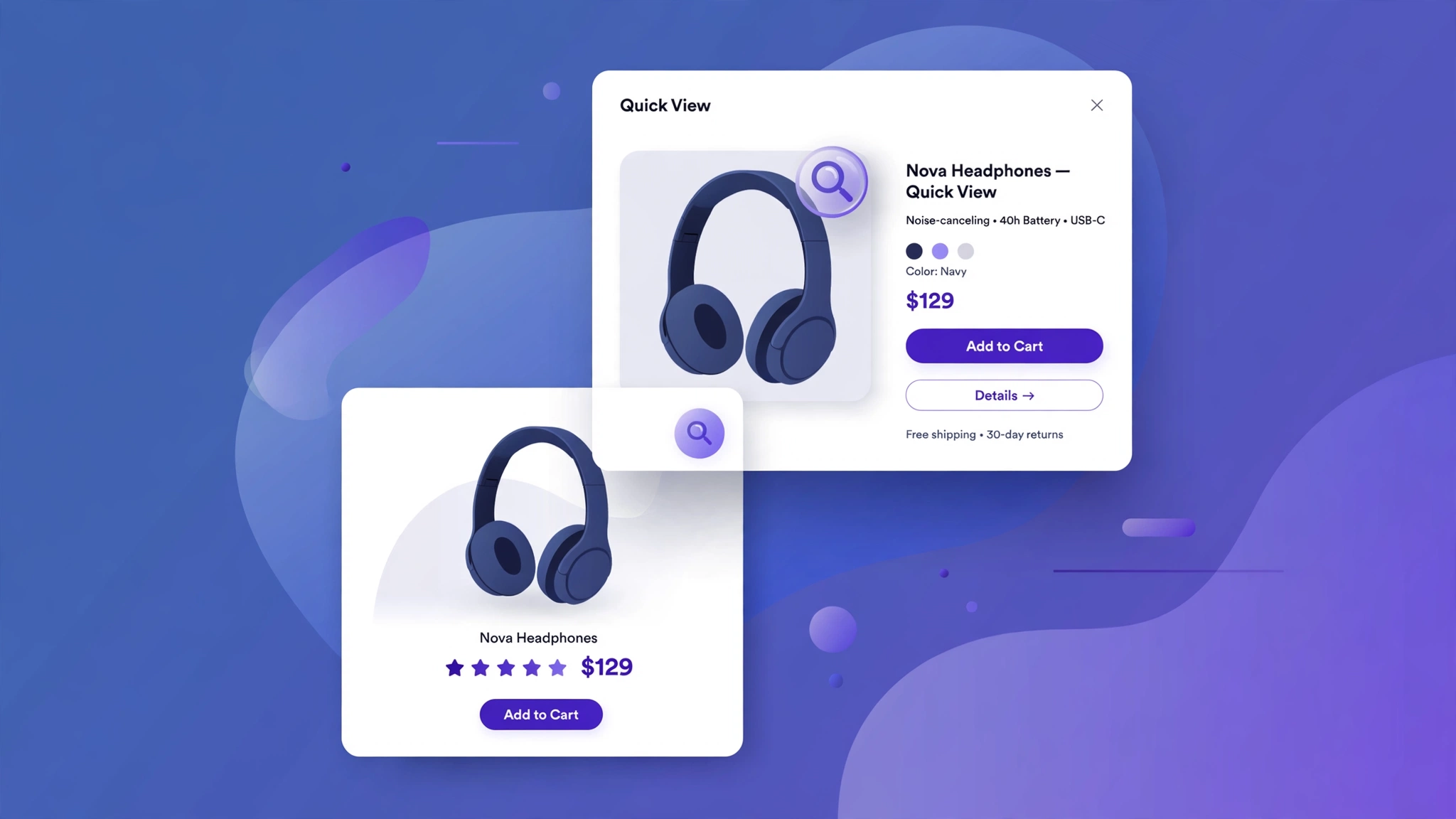
Every extra page load loses shoppers. A quick view button lets customers peek at sizes, colors, and the add-to-cart button without leaving the collection page — and you can build it without a $10/month app. The five designs below show the button reveal on hover (the live preview), and the code includes the tiny vanilla-JS modal logic for your Shopify Custom liquid section.
1. Fashion – Center Overlay Button
The button fades in dead-center over the photo on hover — impossible to miss, yet invisible when idle. Fashion shoppers are decisive; one click opens sizes and colors instantly. The dark translucent pill keeps text readable over any photo.
Preview
{{ product.title | default: ‘Pleated Midi Skirt’ }}
{{ product.price | default: 2799 | money }}
Try it: hover the card to reveal the quick view button
Liquid Code
<div class="lkc-qv1">
<div class="lkc-card">
  <div class="lkc-media">
    <div class="lkc-ph"></div>
    <button class="lkc-qvb" type="button">Quick view</button>
  </div>
  <div class="lkc-info">
    <h4>{{ product.title | default: 'Pleated Midi Skirt' }}</h4>
    <p class="lkc-price">{{ product.price | default: 2799 | money }}</p>
  </div>
</div>
</div>
<style>
.lkc-qv1{max-width:320px;margin:24px auto;font-family:-apple-system,'Segoe UI',Roboto,sans-serif}
.lkc-qv1 .lkc-card{background:#fff;border-radius:14px;overflow:hidden;box-shadow:0 2px 12px rgba(30,27,75,.10);transition:transform .35s ease,box-shadow .35s ease}
.lkc-qv1 .lkc-media{position:relative;aspect-ratio:4/5;overflow:hidden;background:#eef2ff}
.lkc-qv1 .lkc-ph{position:absolute;inset:0;background:linear-gradient(135deg,#c7d2fe 0%,#ddd6fe 55%,#e9d5ff 100%)}
.lkc-qv1 .lkc-ph2{position:absolute;inset:0;background:linear-gradient(135deg,#a5b4fc 0%,#c4b5fd 60%,#f0abfc 100%);opacity:0;transition:opacity .45s ease}
.lkc-qv1 .lkc-info{padding:14px 16px 18px;text-align:center}
.lkc-qv1 .lkc-info h4{margin:0 0 6px;font-size:16px;color:#1e1b4b;font-weight:600}
.lkc-qv1 .lkc-price{margin:0 0 12px;font-weight:700;color:#4f46e5;font-size:15px}
.lkc-qv1 .lkc-price s{color:#9ca3af;font-weight:400;margin-right:6px}
.lkc-qv1 .lkc-btn{display:inline-block;background:#4f46e5;color:#fff;border:0;border-radius:999px;padding:10px 24px;font-weight:600;cursor:pointer;font-size:14px;transition:background .25s,transform .25s}
.lkc-qv1 .lkc-btn:hover{background:#4338ca}
.lkc-qv1 .lkc-qvb{position:absolute;top:50%;left:50%;transform:translate(-50%,-50%) scale(.9);background:rgba(30,27,75,.88);color:#fff;border:0;border-radius:999px;padding:11px 26px;font-weight:700;font-size:13px;cursor:pointer;opacity:0;transition:opacity .3s,transform .3s}.lkc-qv1 .lkc-card:hover .lkc-qvb{opacity:1;transform:translate(-50%,-50%) scale(1)}
</style>
2. Electronics – Bottom Slide Bar
A full-width bar slides up from the bottom of the image — tech shoppers get specs and the buy button in one motion. The slide feels mechanical and precise, matching gadget aesthetics. Pair it with a spec-sheet modal for the full experience.
Preview
{{ product.title | default: ‘Charge Dock Pro’ }}
{{ product.price | default: 4499 | money }}
Try it: hover to slide up the quick view bar
Liquid Code
<div class="lkc-qv2">
<div class="lkc-card">
<div class="lkc-media">
<div class="lkc-ph"></div>
<button class="lkc-qvb" type="button">Quick view — specs</button>
</div>
<div class="lkc-info">
<h4>{{ product.title | default: 'Charge Dock Pro' }}</h4>
<p class="lkc-price">{{ product.price | default: 4499 | money }}</p>
</div>
</div>
</div>
<style>
.lkc-qv2{max-width:320px;margin:24px auto;font-family:-apple-system,'Segoe UI',Roboto,sans-serif}
.lkc-qv2 .lkc-card{background:#fff;border-radius:14px;overflow:hidden;box-shadow:0 2px 12px rgba(30,27,75,.10);transition:transform .35s ease,box-shadow .35s ease}
.lkc-qv2 .lkc-media{position:relative;aspect-ratio:4/5;overflow:hidden;background:#eef2ff}
.lkc-qv2 .lkc-ph{position:absolute;inset:0;background:linear-gradient(135deg,#c7d2fe 0%,#ddd6fe 55%,#e9d5ff 100%)}
.lkc-qv2 .lkc-ph2{position:absolute;inset:0;background:linear-gradient(135deg,#a5b4fc 0%,#c4b5fd 60%,#f0abfc 100%);opacity:0;transition:opacity .45s ease}
.lkc-qv2 .lkc-info{padding:14px 16px 18px;text-align:center}
.lkc-qv2 .lkc-info h4{margin:0 0 6px;font-size:16px;color:#1e1b4b;font-weight:600}
.lkc-qv2 .lkc-price{margin:0 0 12px;font-weight:700;color:#4f46e5;font-size:15px}
.lkc-qv2 .lkc-price s{color:#9ca3af;font-weight:400;margin-right:6px}
.lkc-qv2 .lkc-btn{display:inline-block;background:#4f46e5;color:#fff;border:0;border-radius:999px;padding:10px 24px;font-weight:600;cursor:pointer;font-size:14px;transition:background .25s,transform .25s}
.lkc-qv2 .lkc-btn:hover{background:#4338ca}
.lkc-qv2 .lkc-qvb{position:absolute;left:0;right:0;bottom:0;transform:translateY(100%);background:#0ea5e9;color:#fff;border:0;padding:12px;font-weight:700;font-size:13px;cursor:pointer;transition:transform .32s ease}.lkc-qv2 .lkc-card:hover .lkc-qvb{transform:translateY(0)}
</style>3. Jewelry – Circular Lens Button
A round lens-like button with a magnifier feel — hovering it suggests “look closer,” which is exactly what jewelry shoppers want. The circle echoes ring and pendant shapes, keeping the whole card visually coherent. Elegant and on-brand.
Preview
{{ product.title | default: ‘Sapphire Tennis Bracelet’ }}
{{ product.price | default: 24999 | money }}
Try it: hover to reveal the lens button
Liquid Code
<div class="lkc-qv3">
<div class="lkc-card">
<div class="lkc-media">
<div class="lkc-ph"></div>
<button class="lkc-qvb" type="button">🔍</button>
</div>
<div class="lkc-info">
<h4>{{ product.title | default: 'Sapphire Tennis Bracelet' }}</h4>
<p class="lkc-price">{{ product.price | default: 24999 | money }}</p>
</div>
</div>
</div>
<style>
.lkc-qv3{max-width:320px;margin:24px auto;font-family:-apple-system,'Segoe UI',Roboto,sans-serif}
.lkc-qv3 .lkc-card{background:#fff;border-radius:14px;overflow:hidden;box-shadow:0 2px 12px rgba(30,27,75,.10);transition:transform .35s ease,box-shadow .35s ease}
.lkc-qv3 .lkc-media{position:relative;aspect-ratio:4/5;overflow:hidden;background:#eef2ff}
.lkc-qv3 .lkc-ph{position:absolute;inset:0;background:linear-gradient(135deg,#c7d2fe 0%,#ddd6fe 55%,#e9d5ff 100%)}
.lkc-qv3 .lkc-ph2{position:absolute;inset:0;background:linear-gradient(135deg,#a5b4fc 0%,#c4b5fd 60%,#f0abfc 100%);opacity:0;transition:opacity .45s ease}
.lkc-qv3 .lkc-info{padding:14px 16px 18px;text-align:center}
.lkc-qv3 .lkc-info h4{margin:0 0 6px;font-size:16px;color:#1e1b4b;font-weight:600}
.lkc-qv3 .lkc-price{margin:0 0 12px;font-weight:700;color:#4f46e5;font-size:15px}
.lkc-qv3 .lkc-price s{color:#9ca3af;font-weight:400;margin-right:6px}
.lkc-qv3 .lkc-btn{display:inline-block;background:#4f46e5;color:#fff;border:0;border-radius:999px;padding:10px 24px;font-weight:600;cursor:pointer;font-size:14px;transition:background .25s,transform .25s}
.lkc-qv3 .lkc-btn:hover{background:#4338ca}
.lkc-qv3 .lkc-qvb{position:absolute;top:50%;left:50%;width:58px;height:58px;margin:-29px 0 0 -29px;border-radius:50%;background:rgba(255,255,255,.94);border:2px solid #d4af37;color:#8a6d1c;font-size:20px;cursor:pointer;opacity:0;transition:opacity .3s}.lkc-qv3 .lkc-card:hover .lkc-qvb{opacity:1}
</style>4. Beauty – Soft Pill Popup Trigger
A blush-pink pill that gently appears at the bottom of the photo — soft, friendly, and very beauty-brand. No harsh overlays; the pill floats above the image with a soft shadow. Ideal for shade selectors and ingredient lists in the modal.
Preview
{{ product.title | default: ‘Peptide Moisturizer’ }}
{{ product.price | default: 2199 | money }}
Try it: hover to reveal the soft pill button
Liquid Code
<div class="lkc-qv4">
<div class="lkc-card">
  <div class="lkc-media">
    <div class="lkc-ph"></div>
    <button class="lkc-qvb" type="button">Quick view</button>
  </div>
  <div class="lkc-info">
    <h4>{{ product.title | default: 'Peptide Moisturizer' }}</h4>
    <p class="lkc-price">{{ product.price | default: 2199 | money }}</p>
  </div>
</div>
</div>
<style>
.lkc-qv4{max-width:320px;margin:24px auto;font-family:-apple-system,'Segoe UI',Roboto,sans-serif}
.lkc-qv4 .lkc-card{background:#fff;border-radius:14px;overflow:hidden;box-shadow:0 2px 12px rgba(30,27,75,.10);transition:transform .35s ease,box-shadow .35s ease}
.lkc-qv4 .lkc-media{position:relative;aspect-ratio:4/5;overflow:hidden;background:#eef2ff}
.lkc-qv4 .lkc-ph{position:absolute;inset:0;background:linear-gradient(135deg,#c7d2fe 0%,#ddd6fe 55%,#e9d5ff 100%)}
.lkc-qv4 .lkc-ph2{position:absolute;inset:0;background:linear-gradient(135deg,#a5b4fc 0%,#c4b5fd 60%,#f0abfc 100%);opacity:0;transition:opacity .45s ease}
.lkc-qv4 .lkc-info{padding:14px 16px 18px;text-align:center}
.lkc-qv4 .lkc-info h4{margin:0 0 6px;font-size:16px;color:#1e1b4b;font-weight:600}
.lkc-qv4 .lkc-price{margin:0 0 12px;font-weight:700;color:#4f46e5;font-size:15px}
.lkc-qv4 .lkc-price s{color:#9ca3af;font-weight:400;margin-right:6px}
.lkc-qv4 .lkc-btn{display:inline-block;background:#4f46e5;color:#fff;border:0;border-radius:999px;padding:10px 24px;font-weight:600;cursor:pointer;font-size:14px;transition:background .25s,transform .25s}
.lkc-qv4 .lkc-btn:hover{background:#4338ca}
.lkc-qv4 .lkc-qvb{position:absolute;left:50%;bottom:14px;transform:translateX(-50%) translateY(8px);background:#f9a8d4;color:#831843;border:0;border-radius:999px;padding:9px 22px;font-weight:700;font-size:12px;cursor:pointer;opacity:0;transition:all .3s}.lkc-qv4 .lkc-card:hover .lkc-qvb{opacity:1;transform:translateX(-50%) translateY(0)}
</style>
5. Furniture – Side Peek Tab
A slim vertical tab peeks out from the right edge — subtle for big-ticket furniture where shoppers browse slowly. It does not cover the product photo at all, which matters when the photo is doing the selling. Clicking opens dimensions and delivery info.
Preview
{{ product.title | default: ‘Walnut Coffee Table’ }}
{{ product.price | default: 12999 | money }}
Try it: hover to slide out the side tab
Liquid Code
<div class="lkc-qv5">
<div class="lkc-card">
  <div class="lkc-media">
    <div class="lkc-ph"></div>
    <button class="lkc-qvb" type="button">Quick view</button>
  </div>
  <div class="lkc-info">
    <h4>{{ product.title | default: 'Walnut Coffee Table' }}</h4>
    <p class="lkc-price">{{ product.price | default: 12999 | money }}</p>
  </div>
</div>
</div>
<style>
.lkc-qv5{max-width:320px;margin:24px auto;font-family:-apple-system,'Segoe UI',Roboto,sans-serif}
.lkc-qv5 .lkc-card{background:#fff;border-radius:14px;overflow:hidden;box-shadow:0 2px 12px rgba(30,27,75,.10);transition:transform .35s ease,box-shadow .35s ease}
.lkc-qv5 .lkc-media{position:relative;aspect-ratio:4/5;overflow:hidden;background:#eef2ff}
.lkc-qv5 .lkc-ph{position:absolute;inset:0;background:linear-gradient(135deg,#c7d2fe 0%,#ddd6fe 55%,#e9d5ff 100%)}
.lkc-qv5 .lkc-ph2{position:absolute;inset:0;background:linear-gradient(135deg,#a5b4fc 0%,#c4b5fd 60%,#f0abfc 100%);opacity:0;transition:opacity .45s ease}
.lkc-qv5 .lkc-info{padding:14px 16px 18px;text-align:center}
.lkc-qv5 .lkc-info h4{margin:0 0 6px;font-size:16px;color:#1e1b4b;font-weight:600}
.lkc-qv5 .lkc-price{margin:0 0 12px;font-weight:700;color:#4f46e5;font-size:15px}
.lkc-qv5 .lkc-price s{color:#9ca3af;font-weight:400;margin-right:6px}
.lkc-qv5 .lkc-btn{display:inline-block;background:#4f46e5;color:#fff;border:0;border-radius:999px;padding:10px 24px;font-weight:600;cursor:pointer;font-size:14px;transition:background .25s,transform .25s}
.lkc-qv5 .lkc-btn:hover{background:#4338ca}
.lkc-qv5 .lkc-qvb{position:absolute;right:0;top:50%;transform:translateY(-50%) translateX(70%);background:#1e1b4b;color:#fff;border:0;border-radius:8px 0 0 8px;padding:12px 10px;font-weight:700;font-size:12px;writing-mode:vertical-rl;cursor:pointer;transition:transform .3s}.lkc-qv5 .lkc-card:hover .lkc-qvb{transform:translateY(-50%) translateX(0)}
</style>
How to Add Quick View Button to Shopify
- In your Shopify admin, go to Online Store → Themes.
- Click Customize on your published theme.
- At the top, pick the template where you want the demo (e.g. Collection → Default collection).
- Click Add section → Custom liquid.
- Paste the code from above into the Custom liquid box and click Save. That is it — no apps, no theme-file edits.
Customize the Quick View Button
- The preview shows the button reveal; the pasted code adds a lightweight modal — wire it to your product JSON.
- Change the modal content per niche: sizes for fashion, specs for electronics, shades for beauty.
- Keep the button label short: “Quick view” outperforms longer text in tests.
- On mobile, show the button always (no hover) via a media query.
More Shopify Code Sections
- Shopify Product Card Hover Effect (Liquid + CSS)
- Shopify Product Image Changes on Hover (Second Image)
- Shopify Product Card AJAX Add to Cart (No Refresh)
- Shopify Product Card Wishlist Button (No App)
- Shopify Collection Product Grid Custom CSS
- Shopify Sticky Add to Cart Bar
- Shopify Testimonial Auto Slider
- Shopify Frequently Bought Together Section
Conclusion
Quick view removes friction between “interested” and “informed” — and friction is where sales die. These five button styles drop into a Custom liquid section in minutes and work without any app. Start with one collection, measure the click-through, then roll it out everywhere.
Want effects like these on your whole store, done for you? LayoutKart builds conversion-focused Shopify stores with premium touches baked in — no apps needed.
