
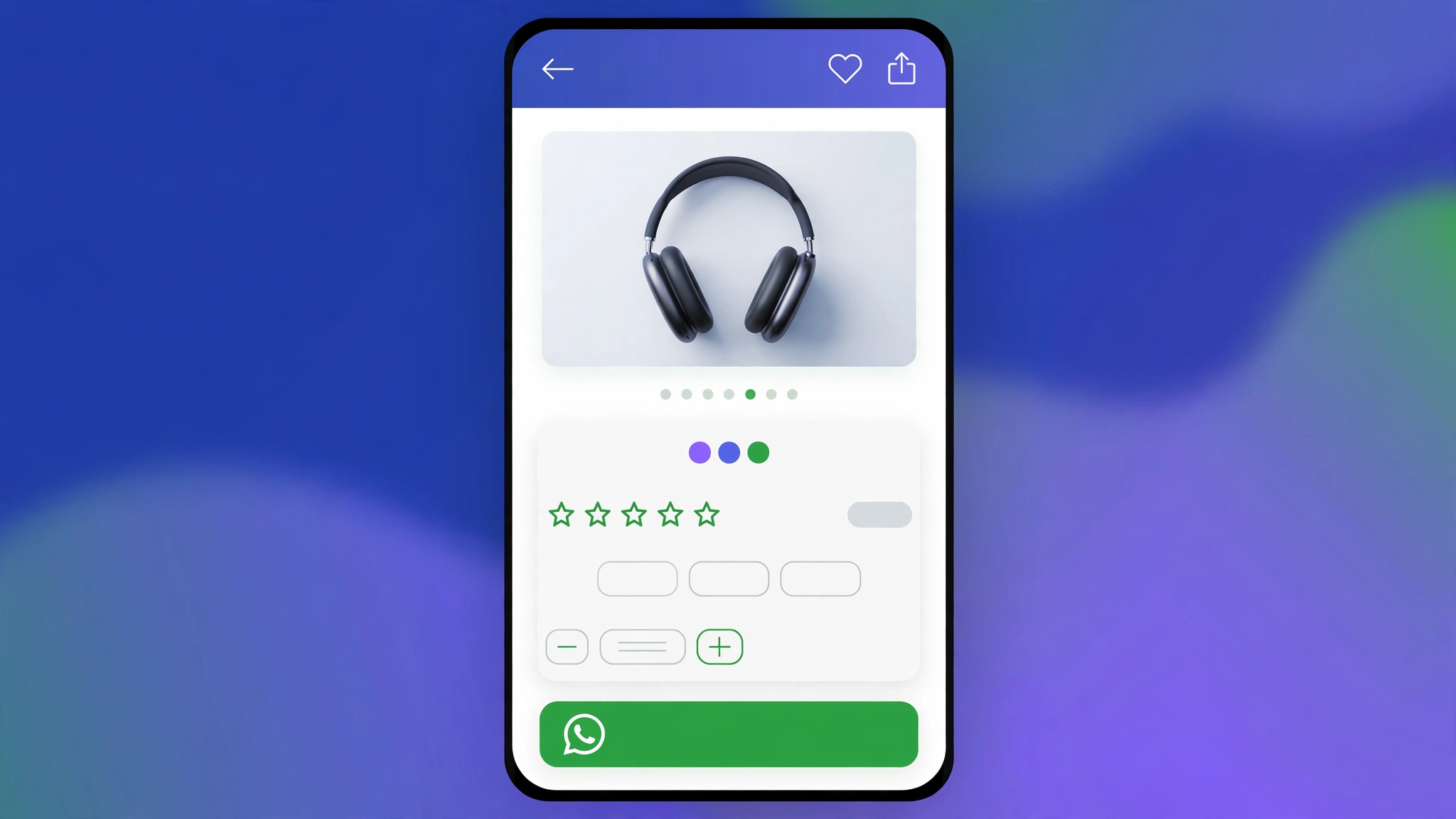
In India, WhatsApp IS commerce. Many customers prefer chatting before buying — asking about size, delivery, or COD. A WhatsApp order button on your product page captures these buyers instead of losing them. It opens a chat with your number and the product name pre-filled. Six designs below, all working with a simple Custom Liquid section.
1. Fashion Store – Chat-to-Buy Button
Classic WhatsApp green, rounded and friendly.
Preview
Sample: opens WhatsApp with the product name pre-filled in the chat.
Liquid Code
{% assign wa_msg = "Hi! I want to order: " | append: product.title %}
<a href="https://wa.me/919876543210?text={{ wa_msg | url_encode }}" target="_blank" rel="noopener"
   class="lk-wa" style="font-family:Arial, sans-serif;">
  <span style="font-size:20px;">💬</span> Order on WhatsApp
</a>
<style>
.lk-wa {
  display:inline-flex; align-items:center; gap:10px;
  background:#25D366; color:#ffffff; text-decoration:none;
  padding:13px 26px; border-radius:24px;
  font-size:15px; font-weight:700; margin:12px 0;
  box-shadow:0 4px 14px rgba(0,0,0,.15);
}
.lk-wa:hover { filter:brightness(1.08); }
</style>
2. Electronics Store – Support Chat Button
Dark theme with green accent for tech queries.
Preview
Sample: opens WhatsApp with the product name pre-filled in the chat.
Liquid Code
{% assign wa_msg = "Hi! I have a question about: " | append: product.title %}
<a href="https://wa.me/919876543210?text={{ wa_msg | url_encode }}" target="_blank" rel="noopener"
   class="lk-wa" style="font-family:'Segoe UI', sans-serif;">
  <span style="font-size:20px;">💬</span> Chat About This Product
</a>
<style>
.lk-wa {
  display:inline-flex; align-items:center; gap:10px;
  background:#128C7E; color:#ffffff; text-decoration:none;
  padding:13px 26px; border-radius:8px;
  font-size:15px; font-weight:700; margin:12px 0;
  box-shadow:0 4px 14px rgba(0,0,0,.15);
}
.lk-wa:hover { filter:brightness(1.08); }
</style>
3. Grocery Store – Quick Order Button
Fresh green quick-order for daily needs.
Preview
Sample: opens WhatsApp with the product name pre-filled in the chat.
Liquid Code
{% assign wa_msg = "Hi! Please deliver: " | append: product.title %}
<a href="https://wa.me/919876543210?text={{ wa_msg | url_encode }}" target="_blank" rel="noopener"
   class="lk-wa" style="font-family:Verdana, sans-serif;">
  <span style="font-size:20px;">💬</span> WhatsApp Quick Order
</a>
<style>
.lk-wa {
  display:inline-flex; align-items:center; gap:10px;
  background:#22c55e; color:#ffffff; text-decoration:none;
  padding:13px 26px; border-radius:12px;
  font-size:15px; font-weight:700; margin:12px 0;
  box-shadow:0 4px 14px rgba(0,0,0,.15);
}
.lk-wa:hover { filter:brightness(1.08); }
</style>
4. Jewelry Store – Concierge Button
Elegant dark-gold for high-touch sales.
Preview
Sample: opens WhatsApp with the product name pre-filled in the chat.
Liquid Code
{% assign wa_msg = "Hello, I'm interested in: " | append: product.title %}
<a href="https://wa.me/919876543210?text={{ wa_msg | url_encode }}" target="_blank" rel="noopener"
   class="lk-wa" style="font-family:Georgia, serif;">
  <span style="font-size:20px;">💬</span> Enquire on WhatsApp
</a>
<style>
.lk-wa {
  display:inline-flex; align-items:center; gap:10px;
  background:#1a1a1a; color:#f5e6c4; text-decoration:none;
  padding:13px 26px; border-radius:4px;
  font-size:15px; font-weight:700; margin:12px 0;
  box-shadow:0 4px 14px rgba(0,0,0,.15);
}
.lk-wa:hover { filter:brightness(1.08); }
</style>
5. COD Store – COD Order Button
Bold orange for cash-on-delivery orders.
Preview
Sample: opens WhatsApp with the product name pre-filled in the chat.
Liquid Code
{% assign wa_msg = "Hi! I want to order with COD: " | append: product.title %}
<a href="https://wa.me/919876543210?text={{ wa_msg | url_encode }}" target="_blank" rel="noopener"
   class="lk-wa" style="font-family:'Trebuchet MS', sans-serif;">
  <span style="font-size:20px;">💬</span> Order with COD on WhatsApp
</a>
<style>
.lk-wa {
  display:inline-flex; align-items:center; gap:10px;
  background:#ea580c; color:#ffffff; text-decoration:none;
  padding:13px 26px; border-radius:10px;
  font-size:15px; font-weight:700; margin:12px 0;
  box-shadow:0 4px 14px rgba(0,0,0,.15);
}
.lk-wa:hover { filter:brightness(1.08); }
</style>
6. Service Booking – Book on WhatsApp
Teal booking-style for services.
Preview
Sample: opens WhatsApp with the product name pre-filled in the chat.
Liquid Code
{% assign wa_msg = "Hi! I'd like to book: " | append: product.title %}
<a href="https://wa.me/919876543210?text={{ wa_msg | url_encode }}" target="_blank" rel="noopener"
   class="lk-wa" style="font-family:Arial, sans-serif;">
  <span style="font-size:20px;">💬</span> Book on WhatsApp
</a>
<style>
.lk-wa {
  display:inline-flex; align-items:center; gap:10px;
  background:#0d9488; color:#ffffff; text-decoration:none;
  padding:13px 26px; border-radius:8px;
  font-size:15px; font-weight:700; margin:12px 0;
  box-shadow:0 4px 14px rgba(0,0,0,.15);
}
.lk-wa:hover { filter:brightness(1.08); }
</style>
How to Add WhatsApp Order Button to Shopify
No theme file editing needed. Use Shopify’s Custom Liquid section:
- In Shopify admin, go to Online Store > Themes.
- Click Customize on your live theme (works with Dawn and all OS 2.0 themes).
- Navigate to your product page template using the top page selector.
- In the left sidebar, click Add section and choose Custom liquid.
- Paste the code from any variation above into the Custom liquid box.
- Drag the section to the right position (under the buy buttons is ideal) and click Save.
Tip: want it on every product automatically? Add the section once to the default product template and it appears store-wide.
Customize the WhatsApp Button
- Replace 919876543210 with YOUR WhatsApp business number (country code + number, no + or spaces).
- Edit the pre-filled message to include price or a greeting.
- Show it only in India: wrap in {% if localization.country.iso_code == ‘IN’ %}.
- Use the official WhatsApp green (#25D366) for instant recognition.
More Shopify Code Sections
- Shopify WhatsApp Checkout Button
- Shopify Product Page Trust Badges with Liquid (Code + Guide)
- Shopify Product Page Pincode Delivery Checker
- Shopify Sticky Add to Cart Bar
- Shopify Product Page Custom Offer Box
- Shopify Product Card Quick View Button
- Shopify Cart Announcement Message
- Shopify Product Page Size Chart Popup
Conclusion
If you sell in India, a WhatsApp button isn’t optional — it’s expected. It turns chat-shy browsers into conversations, and conversations into orders. Add your number, pick a style, and start chatting your way to more sales.
Want this done for you? LayoutKart builds conversion-ready Shopify stores with all these sections pre-installed. Browse our readymade Shopify templates or get a custom store built for your brand.
