
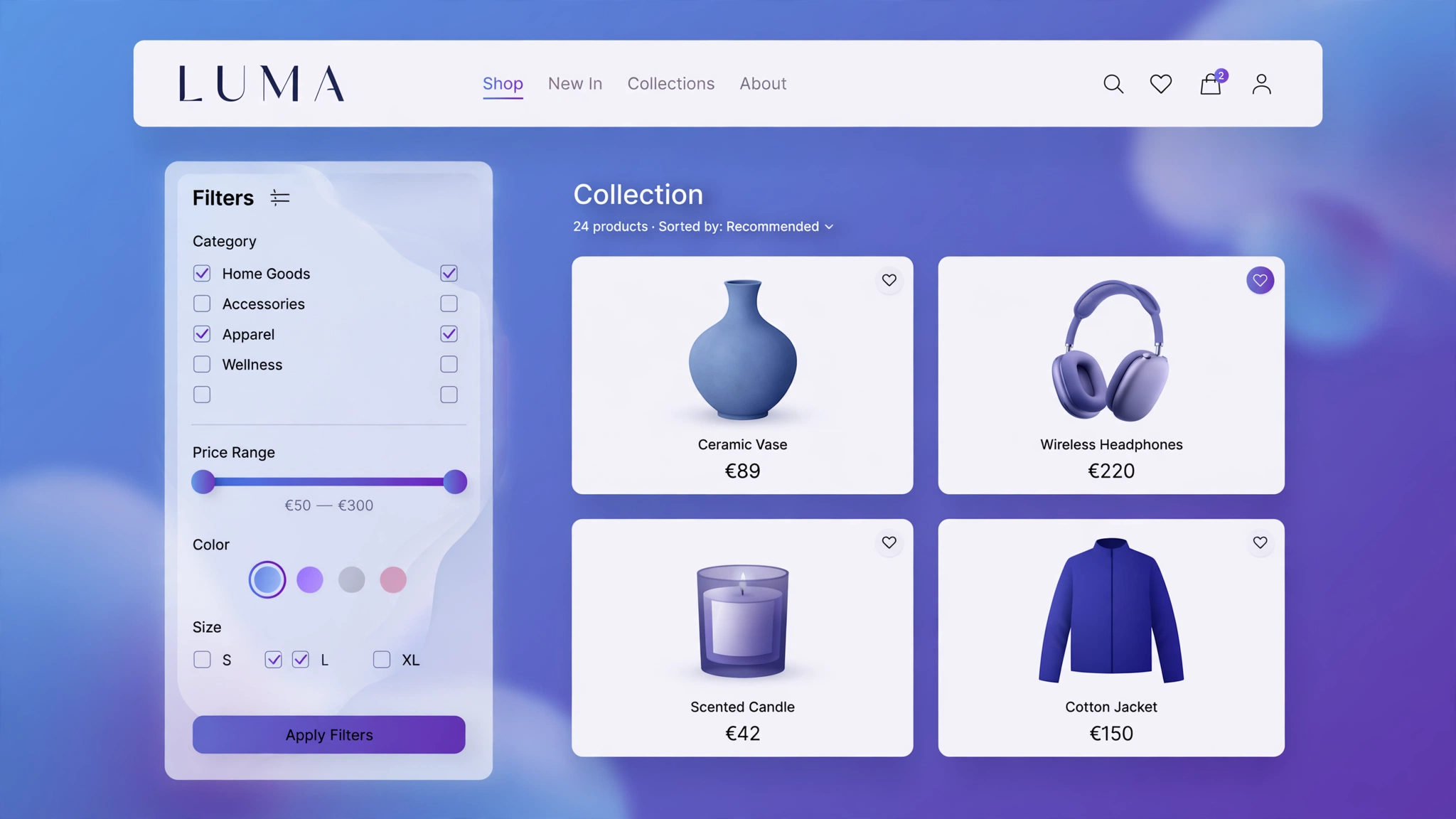
Filters decide whether shoppers find what they want or bounce. Dawn includes basic filtering, but the default look is … default. These five custom filter designs make narrowing down feel effortless — and effortless browsing converts. Each is a self-contained Custom liquid demo below; adapt the markup to wrap your real filter form. No filter app required.
1. Fashion – Sidebar Pill Filters
Size and color as tappable pills instead of boring checkboxes. Fashion shoppers think in S/M/L and color names, so pills match their mental model. Selected pills fill indigo. This pattern lifts filter usage dramatically on apparel stores.
Preview
Size
Color
Try it: this is a static design demo of the filter UI
Liquid Code
<div class="lkc-fl1">
<div class="lkc-fbox"><h5>Size</h5><div class="lkc-pills"><span>XS</span><span class="on">S</span><span>M</span><span>L</span><span>XL</span></div><h5>Color</h5><div class="lkc-pills"><span class="on">Black</span><span>White</span><span>Beige</span></div></div>
</div>
<style>
.lkc-fl1{max-width:320px;margin:24px auto;font-family:-apple-system,'Segoe UI',Roboto,sans-serif}
.lkc-fl1 .lkc-card{background:#fff;border-radius:14px;overflow:hidden;box-shadow:0 2px 12px rgba(30,27,75,.10);transition:transform .35s ease,box-shadow .35s ease}
.lkc-fl1 .lkc-media{position:relative;aspect-ratio:4/5;overflow:hidden;background:#eef2ff}
.lkc-fl1 .lkc-ph{position:absolute;inset:0;background:linear-gradient(135deg,#c7d2fe 0%,#ddd6fe 55%,#e9d5ff 100%)}
.lkc-fl1 .lkc-ph2{position:absolute;inset:0;background:linear-gradient(135deg,#a5b4fc 0%,#c4b5fd 60%,#f0abfc 100%);opacity:0;transition:opacity .45s ease}
.lkc-fl1 .lkc-info{padding:14px 16px 18px;text-align:center}
.lkc-fl1 .lkc-info h4{margin:0 0 6px;font-size:16px;color:#1e1b4b;font-weight:600}
.lkc-fl1 .lkc-price{margin:0 0 12px;font-weight:700;color:#4f46e5;font-size:15px}
.lkc-fl1 .lkc-price s{color:#9ca3af;font-weight:400;margin-right:6px}
.lkc-fl1 .lkc-btn{display:inline-block;background:#4f46e5;color:#fff;border:0;border-radius:999px;padding:10px 24px;font-weight:600;cursor:pointer;font-size:14px;transition:background .25s,transform .25s}
.lkc-fl1 .lkc-btn:hover{background:#4338ca}
.lkc-fl1{max-width:340px}.lkc-fl1 .lkc-fbox{background:#fff;border-radius:14px;padding:18px;box-shadow:0 2px 12px rgba(30,27,75,.10)}.lkc-fl1 h5{margin:0 0 10px;font-size:13px;color:#1e1b4b;text-transform:uppercase;letter-spacing:1px}.lkc-fl1 .lkc-pills{display:flex;flex-wrap:wrap;gap:8px;margin-bottom:16px}.lkc-fl1 .lkc-pills span{border:1.5px solid #e0e7ff;border-radius:999px;padding:7px 15px;font-size:13px;font-weight:600;color:#4f46e5;cursor:pointer}.lkc-fl1 .lkc-pills span.on{background:#4f46e5;color:#fff;border-color:#4f46e5}
</style>
2. Electronics – Top Bar Dropdown Look
Horizontal dropdown-style filters across the top — brand, price, rating — like the big marketplaces use. Electronics catalogs are spec-heavy, so a top bar keeps filters visible while scrolling long grids. Clean, familiar, effective.
Preview
Try it: this is a static design demo of the filter bar
Liquid Code
<div class="lkc-fl2">
<div class="lkc-fbar"><span class="lkc-dd">Brand ▾</span><span class="lkc-dd on">Under ₹5,000 ▾</span><span class="lkc-dd">4★ & above ▾</span><span class="lkc-dd">In stock ▾</span></div>
</div>
<style>
.lkc-fl2{max-width:320px;margin:24px auto;font-family:-apple-system,'Segoe UI',Roboto,sans-serif}
.lkc-fl2 .lkc-card{background:#fff;border-radius:14px;overflow:hidden;box-shadow:0 2px 12px rgba(30,27,75,.10);transition:transform .35s ease,box-shadow .35s ease}
.lkc-fl2 .lkc-media{position:relative;aspect-ratio:4/5;overflow:hidden;background:#eef2ff}
.lkc-fl2 .lkc-ph{position:absolute;inset:0;background:linear-gradient(135deg,#c7d2fe 0%,#ddd6fe 55%,#e9d5ff 100%)}
.lkc-fl2 .lkc-ph2{position:absolute;inset:0;background:linear-gradient(135deg,#a5b4fc 0%,#c4b5fd 60%,#f0abfc 100%);opacity:0;transition:opacity .45s ease}
.lkc-fl2 .lkc-info{padding:14px 16px 18px;text-align:center}
.lkc-fl2 .lkc-info h4{margin:0 0 6px;font-size:16px;color:#1e1b4b;font-weight:600}
.lkc-fl2 .lkc-price{margin:0 0 12px;font-weight:700;color:#4f46e5;font-size:15px}
.lkc-fl2 .lkc-price s{color:#9ca3af;font-weight:400;margin-right:6px}
.lkc-fl2 .lkc-btn{display:inline-block;background:#4f46e5;color:#fff;border:0;border-radius:999px;padding:10px 24px;font-weight:600;cursor:pointer;font-size:14px;transition:background .25s,transform .25s}
.lkc-fl2 .lkc-btn:hover{background:#4338ca}
.lkc-fl2{max-width:520px}.lkc-fl2 .lkc-fbar{display:flex;gap:10px;flex-wrap:wrap;background:#fff;border-radius:14px;padding:14px 16px;box-shadow:0 2px 12px rgba(30,27,75,.10)}.lkc-fl2 .lkc-dd{border:1.5px solid #e0e7ff;border-radius:10px;padding:9px 14px;font-size:13px;font-weight:600;color:#1e1b4b;background:#f8faff;cursor:pointer}.lkc-fl2 .lkc-dd.on{border-color:#0284c7;color:#0284c7}
</style>3. Jewelry – Minimal Checkbox List
Feather-quiet checkboxes with hairline dividers — material, price band, occasion. Luxury filtering should feel like a concierge asking questions, not a database query. The generous whitespace does the talking.
Preview
Material
Try it: toggle the checkboxes in this design demo
Liquid Code
<div class="lkc-fl3">
<div class="lkc-fbox"><h5>Material</h5><label><input type="checkbox" checked> Gold</label><label><input type="checkbox"> Silver</label><label><input type="checkbox"> Platinum</label></div>
</div>
<style>
.lkc-fl3{max-width:320px;margin:24px auto;font-family:-apple-system,'Segoe UI',Roboto,sans-serif}
.lkc-fl3 .lkc-card{background:#fff;border-radius:14px;overflow:hidden;box-shadow:0 2px 12px rgba(30,27,75,.10);transition:transform .35s ease,box-shadow .35s ease}
.lkc-fl3 .lkc-media{position:relative;aspect-ratio:4/5;overflow:hidden;background:#eef2ff}
.lkc-fl3 .lkc-ph{position:absolute;inset:0;background:linear-gradient(135deg,#c7d2fe 0%,#ddd6fe 55%,#e9d5ff 100%)}
.lkc-fl3 .lkc-ph2{position:absolute;inset:0;background:linear-gradient(135deg,#a5b4fc 0%,#c4b5fd 60%,#f0abfc 100%);opacity:0;transition:opacity .45s ease}
.lkc-fl3 .lkc-info{padding:14px 16px 18px;text-align:center}
.lkc-fl3 .lkc-info h4{margin:0 0 6px;font-size:16px;color:#1e1b4b;font-weight:600}
.lkc-fl3 .lkc-price{margin:0 0 12px;font-weight:700;color:#4f46e5;font-size:15px}
.lkc-fl3 .lkc-price s{color:#9ca3af;font-weight:400;margin-right:6px}
.lkc-fl3 .lkc-btn{display:inline-block;background:#4f46e5;color:#fff;border:0;border-radius:999px;padding:10px 24px;font-weight:600;cursor:pointer;font-size:14px;transition:background .25s,transform .25s}
.lkc-fl3 .lkc-btn:hover{background:#4338ca}
.lkc-fl3{max-width:300px}.lkc-fl3 .lkc-fbox{background:#fff;border-radius:14px;padding:20px;box-shadow:0 2px 12px rgba(30,27,75,.10)}.lkc-fl3 h5{margin:0 0 4px;font-size:12px;color:#8a6d1c;text-transform:uppercase;letter-spacing:1.5px}.lkc-fl3 label{display:flex;align-items:center;gap:10px;padding:10px 0;border-bottom:1px solid #f3f4f6;font-size:14px;color:#1e1b4b;cursor:pointer}.lkc-fl3 input{accent-color:#b08d2e;width:16px;height:16px}
</style>
4. Beauty – Color Swatch Filters
Filter by shade with actual color dots — beauty shoppers do not think in hex codes, they think in pinks and nudes. Round swatches with a ring on selection make shade filtering delightful. Essential for any cosmetics catalog.
Preview
Shade
Try it: this is a static design demo of swatch filters
Liquid Code
<div class="lkc-fl4">
<div class="lkc-fbox"><h5>Shade</h5><div class="lkc-sw"><span style="background:#f9a8d4"></span><span class="on" style="background:#db2777"></span><span style="background:#92400e"></span><span style="background:#fda4af"></span></div></div>
</div>
<style>
.lkc-fl4{max-width:320px;margin:24px auto;font-family:-apple-system,'Segoe UI',Roboto,sans-serif}
.lkc-fl4 .lkc-card{background:#fff;border-radius:14px;overflow:hidden;box-shadow:0 2px 12px rgba(30,27,75,.10);transition:transform .35s ease,box-shadow .35s ease}
.lkc-fl4 .lkc-media{position:relative;aspect-ratio:4/5;overflow:hidden;background:#eef2ff}
.lkc-fl4 .lkc-ph{position:absolute;inset:0;background:linear-gradient(135deg,#c7d2fe 0%,#ddd6fe 55%,#e9d5ff 100%)}
.lkc-fl4 .lkc-ph2{position:absolute;inset:0;background:linear-gradient(135deg,#a5b4fc 0%,#c4b5fd 60%,#f0abfc 100%);opacity:0;transition:opacity .45s ease}
.lkc-fl4 .lkc-info{padding:14px 16px 18px;text-align:center}
.lkc-fl4 .lkc-info h4{margin:0 0 6px;font-size:16px;color:#1e1b4b;font-weight:600}
.lkc-fl4 .lkc-price{margin:0 0 12px;font-weight:700;color:#4f46e5;font-size:15px}
.lkc-fl4 .lkc-price s{color:#9ca3af;font-weight:400;margin-right:6px}
.lkc-fl4 .lkc-btn{display:inline-block;background:#4f46e5;color:#fff;border:0;border-radius:999px;padding:10px 24px;font-weight:600;cursor:pointer;font-size:14px;transition:background .25s,transform .25s}
.lkc-fl4 .lkc-btn:hover{background:#4338ca}
.lkc-fl4{max-width:320px}.lkc-fl4 .lkc-fbox{background:#fff;border-radius:14px;padding:18px;box-shadow:0 2px 12px rgba(30,27,75,.10)}.lkc-fl4 h5{margin:0 0 12px;font-size:13px;color:#1e1b4b;text-transform:uppercase;letter-spacing:1px}.lkc-fl4 .lkc-sw{display:flex;gap:12px}.lkc-fl4 .lkc-sw span{width:34px;height:34px;border-radius:50%;cursor:pointer;border:3px solid transparent}.lkc-fl4 .lkc-sw span.on{border-color:#db2777;box-shadow:0 0 0 2px #fce7f3}
</style>
5. Furniture – Price Chips
Price as friendly chips — “Under ₹2k”, “₹2k–₹5k”, “Premium” — instead of a fiddly slider. Furniture buyers have budgets in mind; chips let them declare it in one tap. Simple, thumb-friendly, mobile-first.
Preview
Price
Try it: this is a static design demo of price chips
Liquid Code
<div class="lkc-fl5">
<div class="lkc-fbox"><h5>Price</h5><div class="lkc-chips"><span>Under ₹2,000</span><span class="on">₹2,000 – ₹5,000</span><span>Premium</span></div></div>
</div>
<style>
.lkc-fl5{max-width:320px;margin:24px auto;font-family:-apple-system,'Segoe UI',Roboto,sans-serif}
.lkc-fl5 .lkc-card{background:#fff;border-radius:14px;overflow:hidden;box-shadow:0 2px 12px rgba(30,27,75,.10);transition:transform .35s ease,box-shadow .35s ease}
.lkc-fl5 .lkc-media{position:relative;aspect-ratio:4/5;overflow:hidden;background:#eef2ff}
.lkc-fl5 .lkc-ph{position:absolute;inset:0;background:linear-gradient(135deg,#c7d2fe 0%,#ddd6fe 55%,#e9d5ff 100%)}
.lkc-fl5 .lkc-ph2{position:absolute;inset:0;background:linear-gradient(135deg,#a5b4fc 0%,#c4b5fd 60%,#f0abfc 100%);opacity:0;transition:opacity .45s ease}
.lkc-fl5 .lkc-info{padding:14px 16px 18px;text-align:center}
.lkc-fl5 .lkc-info h4{margin:0 0 6px;font-size:16px;color:#1e1b4b;font-weight:600}
.lkc-fl5 .lkc-price{margin:0 0 12px;font-weight:700;color:#4f46e5;font-size:15px}
.lkc-fl5 .lkc-price s{color:#9ca3af;font-weight:400;margin-right:6px}
.lkc-fl5 .lkc-btn{display:inline-block;background:#4f46e5;color:#fff;border:0;border-radius:999px;padding:10px 24px;font-weight:600;cursor:pointer;font-size:14px;transition:background .25s,transform .25s}
.lkc-fl5 .lkc-btn:hover{background:#4338ca}
.lkc-fl5{max-width:340px}.lkc-fl5 .lkc-fbox{background:#fff;border-radius:14px;padding:18px;box-shadow:0 2px 12px rgba(30,27,75,.10)}.lkc-fl5 h5{margin:0 0 12px;font-size:13px;color:#1e1b4b;text-transform:uppercase;letter-spacing:1px}.lkc-fl5 .lkc-chips{display:flex;flex-direction:column;gap:8px}.lkc-fl5 .lkc-chips span{border:1.5px solid #e0e7ff;border-radius:10px;padding:10px 14px;font-size:13px;font-weight:600;color:#0f766e;cursor:pointer;background:#f0fdfa}.lkc-fl5 .lkc-chips span.on{background:#0f766e;color:#fff;border-color:#0f766e}
</style>
How to Add Collection Filter Design to Shopify
- In your Shopify admin, go to Online Store → Themes.
- Click Customize on your published theme.
- At the top, pick the template where you want the demo (e.g. Collection → Default collection).
- Click Add section → Custom liquid.
- Paste the code from above into the Custom liquid box and click Save. That is it — no apps, no theme-file edits.
Customize the Collection Filter Design
- Wrap these designs around Shopify’s real faceted filter form — style the labels, keep the functionality.
- Match filter accent colors to your brand palette for instant cohesion.
- On mobile, collapse filters into a drawer triggered by a “Filters” button.
- Show active filter count badges so shoppers see what is applied at a glance.
More Shopify Code Sections
- Shopify Collection Product Grid Custom CSS
- Shopify Product Card Hover Effect (Liquid + CSS)
- Shopify Scrolling Brand Logos Section
- Shopify Product Card Quick View Button
- Shopify Animated Counter Section
- Shopify Testimonial Auto Slider
- Shopify Image Hover Zoom Effect
- Shopify Hero Banner Text Animation
Conclusion
Filters are where browsing becomes buying — every tap narrows the path to checkout. These five designs prove filtering can be beautiful as well as functional. Adapt one to your real filter form in a Custom liquid section, and watch your collection pages start working harder.
Want effects like these on your whole store, done for you? LayoutKart builds conversion-focused Shopify stores with premium touches baked in — no apps needed.
