
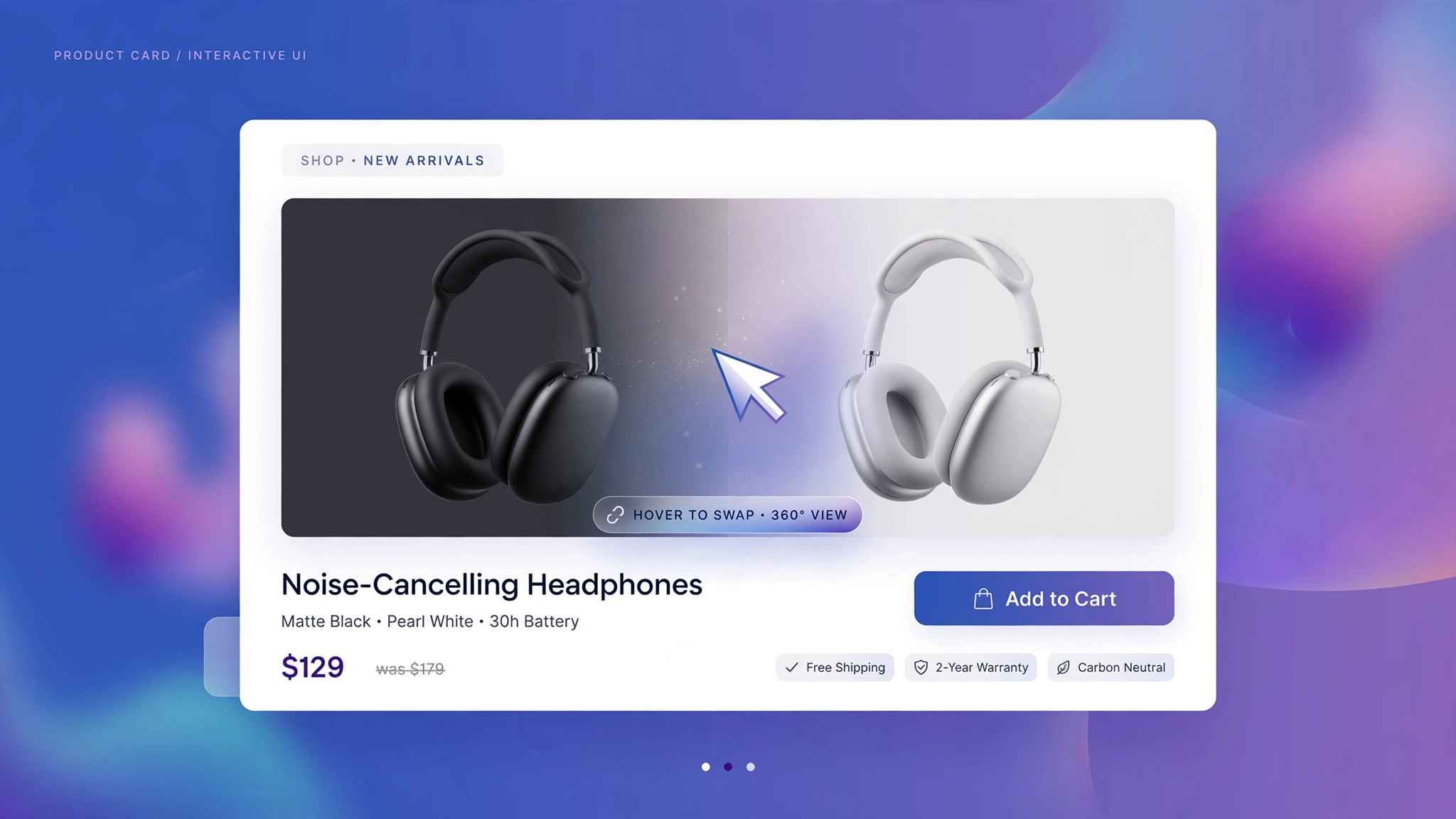
One photo rarely tells the whole story. Showing a second image on hover — the back of a dress, the earbuds in a case, the serum texture — answers questions before shoppers even click. The best part? Shopify already stores that second image on every product, so this is pure Liquid + CSS with zero apps. Five styles below, each with a live preview and copy-paste code for a Custom liquid section.
1. Fashion Store – Crossfade Swap
The workhorse. The second photo fades in over the first with a soft half-second crossfade. Dawn-theme shoppers already expect this behavior, so it feels native. Use it for alternate angles or on-model shots. The Liquid pulls product.images[1] automatically, with a gradient fallback for the demo.
Preview
{{ product.title | default: ‘Linen Summer Shirt’ }}
{{ product.price | default: 2999 | money }}
Try it: hover over the card to crossfade to the second image
Liquid Code
<div class="lkc-ih1">
<div class="lkc-card">
  <div class="lkc-media">
    <div class="lkc-ph"></div>
    <div class="lkc-ph2"></div>
  </div>
  <div class="lkc-info">
    <h4>{{ product.title | default: 'Linen Summer Shirt' }}</h4>
    <p class="lkc-price">{{ product.price | default: 2999 | money }}</p>
    <button class="lkc-btn" type="button">Add to cart</button>
  </div>
</div>
</div>
<style>
.lkc-ih1{max-width:320px;margin:24px auto;font-family:-apple-system,'Segoe UI',Roboto,sans-serif}
.lkc-ih1 .lkc-card{background:#fff;border-radius:14px;overflow:hidden;box-shadow:0 2px 12px rgba(30,27,75,.10);transition:transform .35s ease,box-shadow .35s ease}
.lkc-ih1 .lkc-media{position:relative;aspect-ratio:4/5;overflow:hidden;background:#eef2ff}
.lkc-ih1 .lkc-ph{position:absolute;inset:0;background:linear-gradient(135deg,#c7d2fe 0%,#ddd6fe 55%,#e9d5ff 100%)}
.lkc-ih1 .lkc-ph2{position:absolute;inset:0;background:linear-gradient(135deg,#a5b4fc 0%,#c4b5fd 60%,#f0abfc 100%);opacity:0;transition:opacity .45s ease}
.lkc-ih1 .lkc-info{padding:14px 16px 18px;text-align:center}
.lkc-ih1 .lkc-info h4{margin:0 0 6px;font-size:16px;color:#1e1b4b;font-weight:600}
.lkc-ih1 .lkc-price{margin:0 0 12px;font-weight:700;color:#4f46e5;font-size:15px}
.lkc-ih1 .lkc-price s{color:#9ca3af;font-weight:400;margin-right:6px}
.lkc-ih1 .lkc-btn{display:inline-block;background:#4f46e5;color:#fff;border:0;border-radius:999px;padding:10px 24px;font-weight:600;cursor:pointer;font-size:14px;transition:background .25s,transform .25s}
.lkc-ih1 .lkc-btn:hover{background:#4338ca}
.lkc-ih1 .lkc-card:hover .lkc-ph2{opacity:1}
</style>
2. Sneakers – Slide Wipe
The second image wipes in from the right like a curtain, which feels sporty and dynamic — perfect for sneakers and streetwear. The slide uses translateX so it stays GPU-smooth even on image-heavy collection pages. Add it to new drops for extra hype.
Preview
{{ product.title | default: ‘Street Runner Sneakers’ }}
{{ product.price | default: 7499 | money }}
Try it: hover to wipe in the second image
Liquid Code
<div class="lkc-ih2">
<div class="lkc-card">
  <div class="lkc-media">
    <div class="lkc-ph"></div>
    <div class="lkc-ph2"></div>
  </div>
  <div class="lkc-info">
    <h4>{{ product.title | default: 'Street Runner Sneakers' }}</h4>
    <p class="lkc-price">{{ product.price | default: 7499 | money }}</p>
    <button class="lkc-btn" type="button">Add to cart</button>
  </div>
</div>
</div>
<style>
.lkc-ih2{max-width:320px;margin:24px auto;font-family:-apple-system,'Segoe UI',Roboto,sans-serif}
.lkc-ih2 .lkc-card{background:#fff;border-radius:14px;overflow:hidden;box-shadow:0 2px 12px rgba(30,27,75,.10);transition:transform .35s ease,box-shadow .35s ease}
.lkc-ih2 .lkc-media{position:relative;aspect-ratio:4/5;overflow:hidden;background:#eef2ff}
.lkc-ih2 .lkc-ph{position:absolute;inset:0;background:linear-gradient(135deg,#c7d2fe 0%,#ddd6fe 55%,#e9d5ff 100%)}
.lkc-ih2 .lkc-ph2{position:absolute;inset:0;background:linear-gradient(135deg,#a5b4fc 0%,#c4b5fd 60%,#f0abfc 100%);opacity:0;transition:opacity .45s ease}
.lkc-ih2 .lkc-info{padding:14px 16px 18px;text-align:center}
.lkc-ih2 .lkc-info h4{margin:0 0 6px;font-size:16px;color:#1e1b4b;font-weight:600}
.lkc-ih2 .lkc-price{margin:0 0 12px;font-weight:700;color:#4f46e5;font-size:15px}
.lkc-ih2 .lkc-price s{color:#9ca3af;font-weight:400;margin-right:6px}
.lkc-ih2 .lkc-btn{display:inline-block;background:#4f46e5;color:#fff;border:0;border-radius:999px;padding:10px 24px;font-weight:600;cursor:pointer;font-size:14px;transition:background .25s,transform .25s}
.lkc-ih2 .lkc-btn:hover{background:#4338ca}
.lkc-ih2 .lkc-ph2{opacity:1;transform:translateX(100%);transition:transform .45s cubic-bezier(.22,.8,.3,1)}.lkc-ih2 .lkc-card:hover .lkc-ph2{transform:translateX(0)}
</style>
3. Jewelry – Zoom Blend
The alternate view starts slightly zoomed and settles to full frame as it fades in — a cinematic reveal worthy of fine jewelry. Macro detail shots shine here: clasp close-ups, stone facets, engraving. The combined scale + fade reads as pure luxury.
Preview
{{ product.title | default: ‘Opal Stud Earrings’ }}
{{ product.price | default: 8999 | money }}
Try it: hover for the cinematic zoom reveal
Liquid Code
<div class="lkc-ih3">
<div class="lkc-card">
  <div class="lkc-media">
    <div class="lkc-ph"></div>
    <div class="lkc-ph2"></div>
  </div>
  <div class="lkc-info">
    <h4>{{ product.title | default: 'Opal Stud Earrings' }}</h4>
    <p class="lkc-price">{{ product.price | default: 8999 | money }}</p>
    <button class="lkc-btn" type="button">Add to cart</button>
  </div>
</div>
</div>
<style>
.lkc-ih3{max-width:320px;margin:24px auto;font-family:-apple-system,'Segoe UI',Roboto,sans-serif}
.lkc-ih3 .lkc-card{background:#fff;border-radius:14px;overflow:hidden;box-shadow:0 2px 12px rgba(30,27,75,.10);transition:transform .35s ease,box-shadow .35s ease}
.lkc-ih3 .lkc-media{position:relative;aspect-ratio:4/5;overflow:hidden;background:#eef2ff}
.lkc-ih3 .lkc-ph{position:absolute;inset:0;background:linear-gradient(135deg,#c7d2fe 0%,#ddd6fe 55%,#e9d5ff 100%)}
.lkc-ih3 .lkc-ph2{position:absolute;inset:0;background:linear-gradient(135deg,#a5b4fc 0%,#c4b5fd 60%,#f0abfc 100%);opacity:0;transition:opacity .45s ease}
.lkc-ih3 .lkc-info{padding:14px 16px 18px;text-align:center}
.lkc-ih3 .lkc-info h4{margin:0 0 6px;font-size:16px;color:#1e1b4b;font-weight:600}
.lkc-ih3 .lkc-price{margin:0 0 12px;font-weight:700;color:#4f46e5;font-size:15px}
.lkc-ih3 .lkc-price s{color:#9ca3af;font-weight:400;margin-right:6px}
.lkc-ih3 .lkc-btn{display:inline-block;background:#4f46e5;color:#fff;border:0;border-radius:999px;padding:10px 24px;font-weight:600;cursor:pointer;font-size:14px;transition:background .25s,transform .25s}
.lkc-ih3 .lkc-btn:hover{background:#4338ca}
.lkc-ih3 .lkc-ph2{opacity:1;transform:scale(1.25);transition:opacity .5s ease,transform .6s ease}.lkc-ih3 .lkc-card:hover .lkc-ph2{opacity:1;transform:scale(1)}.lkc-ih3 .lkc-ph2{opacity:0}
</style>
4. Beauty – Shade Reveal
Made for cosmetics: hovering reveals the second shade with a small “Shade 02” tag, so shoppers browse colorways without opening the product page. Lipstick, nail polish, and foundation brands see real engagement lifts from this. The tag is pure CSS, positioned top-right.
Preview
Shade 02
{{ product.title | default: ‘Velvet Matte Lipstick’ }}
{{ product.price | default: 1299 | money }}
Try it: hover to reveal the second shade
Liquid Code
<div class="lkc-ih4">
<div class="lkc-card">
  <div class="lkc-media">
    <div class="lkc-ph"></div>
    <div class="lkc-ph2"></div><span class="lkc-shade">Shade 02</span>
  </div>
  <div class="lkc-info">
    <h4>{{ product.title | default: 'Velvet Matte Lipstick' }}</h4>
    <p class="lkc-price">{{ product.price | default: 1299 | money }}</p>
    <button class="lkc-btn" type="button">Add to cart</button>
  </div>
</div>
</div>
<style>
.lkc-ih4{max-width:320px;margin:24px auto;font-family:-apple-system,'Segoe UI',Roboto,sans-serif}
.lkc-ih4 .lkc-card{background:#fff;border-radius:14px;overflow:hidden;box-shadow:0 2px 12px rgba(30,27,75,.10);transition:transform .35s ease,box-shadow .35s ease}
.lkc-ih4 .lkc-media{position:relative;aspect-ratio:4/5;overflow:hidden;background:#eef2ff}
.lkc-ih4 .lkc-ph{position:absolute;inset:0;background:linear-gradient(135deg,#c7d2fe 0%,#ddd6fe 55%,#e9d5ff 100%)}
.lkc-ih4 .lkc-ph2{position:absolute;inset:0;background:linear-gradient(135deg,#a5b4fc 0%,#c4b5fd 60%,#f0abfc 100%);opacity:0;transition:opacity .45s ease}
.lkc-ih4 .lkc-info{padding:14px 16px 18px;text-align:center}
.lkc-ih4 .lkc-info h4{margin:0 0 6px;font-size:16px;color:#1e1b4b;font-weight:600}
.lkc-ih4 .lkc-price{margin:0 0 12px;font-weight:700;color:#4f46e5;font-size:15px}
.lkc-ih4 .lkc-price s{color:#9ca3af;font-weight:400;margin-right:6px}
.lkc-ih4 .lkc-btn{display:inline-block;background:#4f46e5;color:#fff;border:0;border-radius:999px;padding:10px 24px;font-weight:600;cursor:pointer;font-size:14px;transition:background .25s,transform .25s}
.lkc-ih4 .lkc-btn:hover{background:#4338ca}
.lkc-ih4 .lkc-shade{position:absolute;top:10px;right:10px;background:rgba(30,27,75,.85);color:#fff;font-size:11px;font-weight:700;padding:5px 10px;border-radius:999px;opacity:0;transition:opacity .4s}.lkc-ih4 .lkc-card:hover .lkc-ph2{opacity:1}.lkc-ih4 .lkc-card:hover .lkc-shade{opacity:1}
</style>
5. Furniture – Angle Flip
A 3D flip: the card face rotates on the Y axis to reveal the alternate angle, like turning the product in your hands. Furniture and decor shoppers love it for front/side views. Keep the perspective subtle (800px) so text stays readable and the motion stays classy.
Preview
{{ product.title | default: ‘Oak Lounge Chair’ }}
{{ product.price | default: 15999 | money }}
Try it: hover to flip to the second angle
Liquid Code
<div class="lkc-ih5">
<div class="lkc-card">
  <div class="lkc-media">
    <div class="lkc-ph"></div>
    <div class="lkc-ph2"></div>
  </div>
  <div class="lkc-info">
    <h4>{{ product.title | default: 'Oak Lounge Chair' }}</h4>
    <p class="lkc-price">{{ product.price | default: 15999 | money }}</p>
    <button class="lkc-btn" type="button">Add to cart</button>
  </div>
</div>
</div>
<style>
.lkc-ih5{max-width:320px;margin:24px auto;font-family:-apple-system,'Segoe UI',Roboto,sans-serif}
.lkc-ih5 .lkc-card{background:#fff;border-radius:14px;overflow:hidden;box-shadow:0 2px 12px rgba(30,27,75,.10);transition:transform .35s ease,box-shadow .35s ease}
.lkc-ih5 .lkc-media{position:relative;aspect-ratio:4/5;overflow:hidden;background:#eef2ff}
.lkc-ih5 .lkc-ph{position:absolute;inset:0;background:linear-gradient(135deg,#c7d2fe 0%,#ddd6fe 55%,#e9d5ff 100%)}
.lkc-ih5 .lkc-ph2{position:absolute;inset:0;background:linear-gradient(135deg,#a5b4fc 0%,#c4b5fd 60%,#f0abfc 100%);opacity:0;transition:opacity .45s ease}
.lkc-ih5 .lkc-info{padding:14px 16px 18px;text-align:center}
.lkc-ih5 .lkc-info h4{margin:0 0 6px;font-size:16px;color:#1e1b4b;font-weight:600}
.lkc-ih5 .lkc-price{margin:0 0 12px;font-weight:700;color:#4f46e5;font-size:15px}
.lkc-ih5 .lkc-price s{color:#9ca3af;font-weight:400;margin-right:6px}
.lkc-ih5 .lkc-btn{display:inline-block;background:#4f46e5;color:#fff;border:0;border-radius:999px;padding:10px 24px;font-weight:600;cursor:pointer;font-size:14px;transition:background .25s,transform .25s}
.lkc-ih5 .lkc-btn:hover{background:#4338ca}
.lkc-ih5 .lkc-media{perspective:800px}.lkc-ih5 .lkc-ph2{opacity:1;transform:rotateY(90deg);transform-origin:left center;transition:transform .5s ease}.lkc-ih5 .lkc-card:hover .lkc-ph2{transform:rotateY(0)}
</style>
How to Add Image Hover Swap to Shopify
- In your Shopify admin, go to Online Store → Themes.
- Click Customize on your published theme.
- At the top, pick the template where you want the demo (e.g. Collection → Default collection).
- Click Add section → Custom liquid.
- Paste the code from above into the Custom liquid box and click Save. That is it — no apps, no theme-file edits.
Customize the Image Hover Swap
- Point the swap at any image position: change product.images[1] to [2] for the third photo.
- Control speed with the transition values — .3s feels snappy, .7s feels cinematic.
- On touch devices there is no hover: the first image always shows, so make image one your strongest.
- Combine with a sale badge — badges sit above both layers via z-index.
More Shopify Code Sections
- Shopify Product Card Hover Effect (Liquid + CSS)
- Shopify Product Card Sale Badge with Liquid
- Shopify Image Hover Zoom Effect
- Shopify Before & After Image Slider
- Shopify Product Card Quick View Button
- Shopify Collection Product Grid Custom CSS
- Shopify Product Card Discount Percentage Badge
- Shopify Video Background Hero Section
Conclusion
A second image on hover is like giving every product a mini commercial inside your collection grid. Upload alternate angles to each product, paste one of these five styles into a Custom liquid section, and watch engagement climb. It takes minutes, costs nothing, and works on every Shopify theme.
Want effects like these on your whole store, done for you? LayoutKart builds conversion-focused Shopify stores with premium touches baked in — no apps needed.
